Are you looking for a way to receive the full booking amount without covering transaction costs and help guests compare availability across your properties? The latest improvements in BNBForms focus on these tasks.
If you’ve ever adjusted your prices just to cover payment fees or noticed that guests struggle to compare availability across multiple properties, these updates might come in handy for your vacation rental website.
Let’s take a closer look at what’s new.
Pass Payment Processing Fees to Guests
How to avoid payment processing fees with BNBForms short term rental booking software? They can quietly reduce your revenue, especially if you’re covering them yourself for every booking.
Now, you can pass transaction costs directly to guests during checkout instead of including them in your base pricing.
What actually changes?
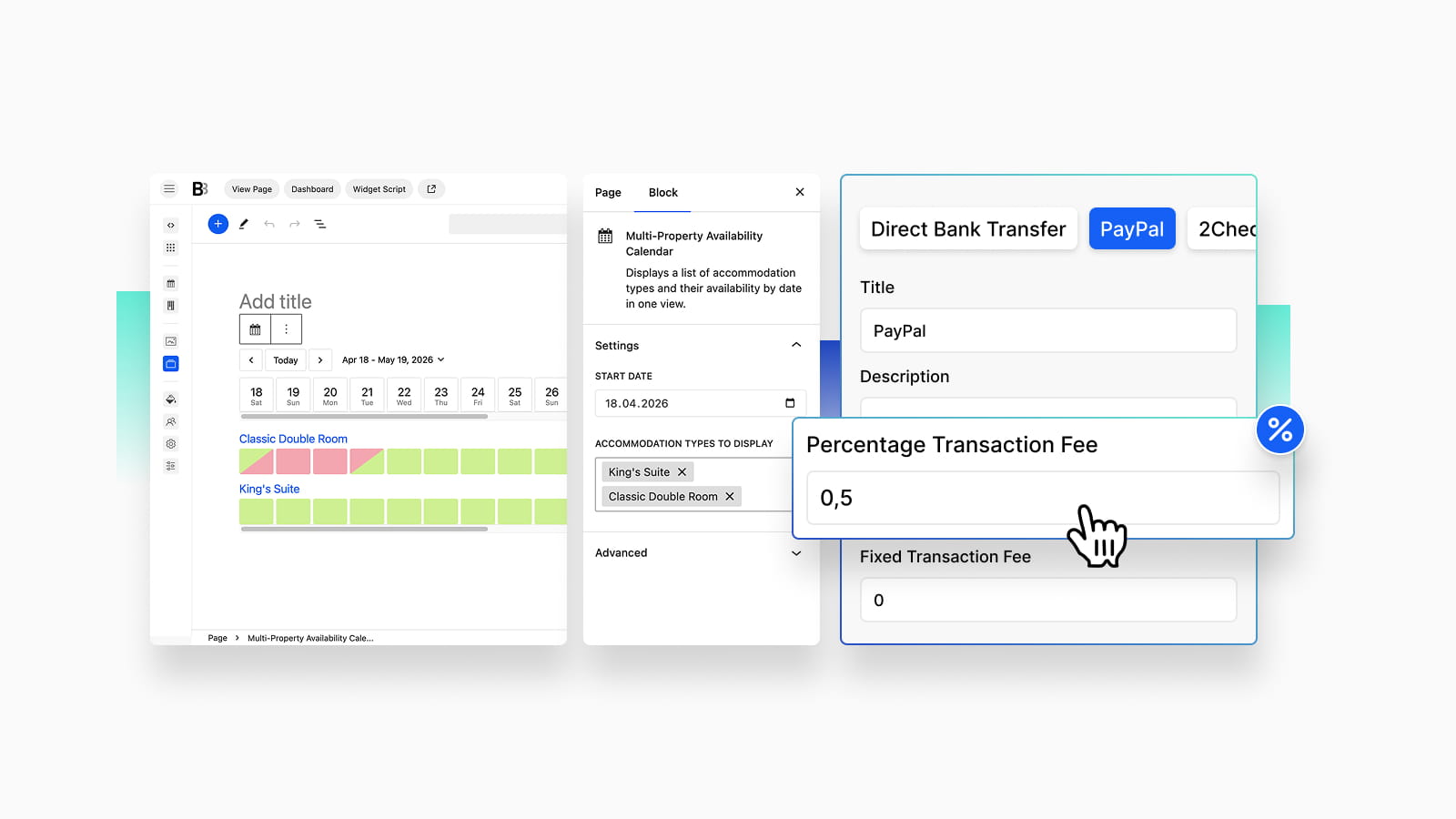
You can assign a transaction fee to each payment method. This fee is added to the booking total when a guest selects that method. Depending on your setup, the fee can be:
- a fixed amount;
- a percentage.
Except for Pay on Arrival and Direct Bank Transfer, all default payment methods are supported. Fees can be set individually for PayPal, Stripe, 2Checkout, Braintree, and Beanstream/Bambora gateways.
This approach gives you more control over your pricing without forcing you to adjust rates just to cover transaction costs. Instead of “hiding” fees in nightly rates, you can reflect them at checkout.
Where to configure payment fees?
Go to Accommodation > Settings > Payment Gateways. Then, choose a payment method, find the Transaction Fee fields, and set the desired fee (fixed or percentage). Once configured, save the changes.
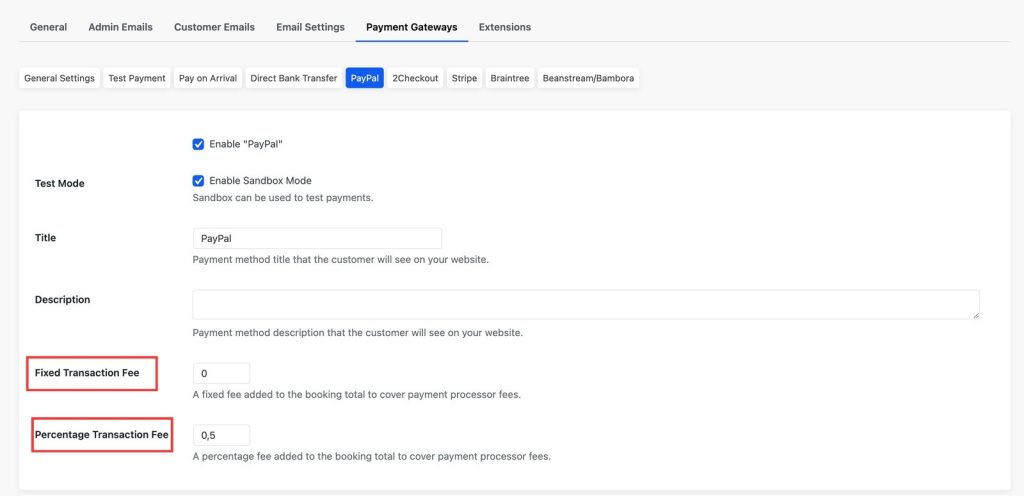
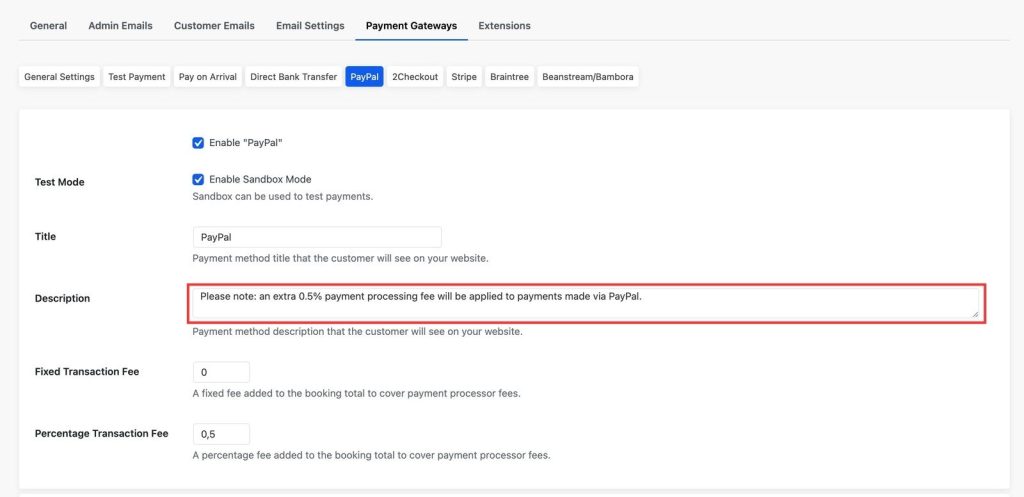
To avoid any confusion, it’s a good idea to mention this information in the payment gateway description. Since guests see this text before reaching checkout, it helps set clear payment expectations.
How do payment gateway fees work?
The system doesn’t pull real-time fees from payment providers. You should define them manually. So, the fee is calculated based on your setup but not on the exact charge from the payment processor.
If you issue a refund, the transaction fee is not included in the refunded amount. The refund covers only the booking total shown on the invoice.
Another thing to note is how fees behave with deposits or partial payments:
- Fixed fees are charged in full for each transaction (for example, once for a deposit and again for the remaining balance).
- Percentage fees are calculated based only on the amount being paid at that moment.
What do guests and admins see?
From the guest’s side, everything remains clear. At checkout, guests will see:
- A separate fee line titled “+Txn Fee”.
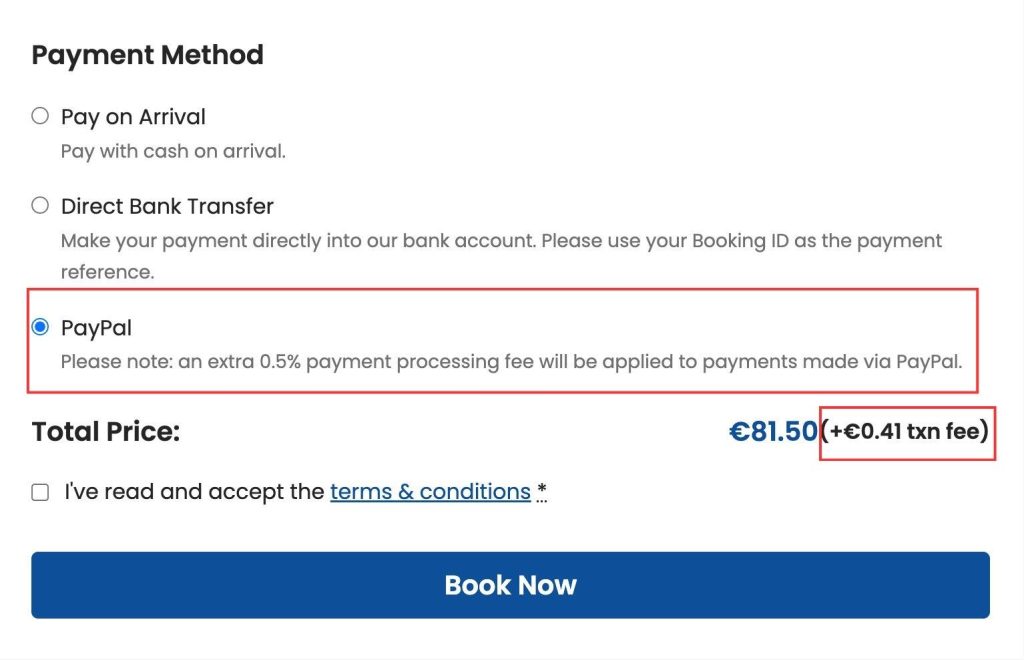
If deposits are enabled, the fee is listed next to “Deposit – Pay Now”.
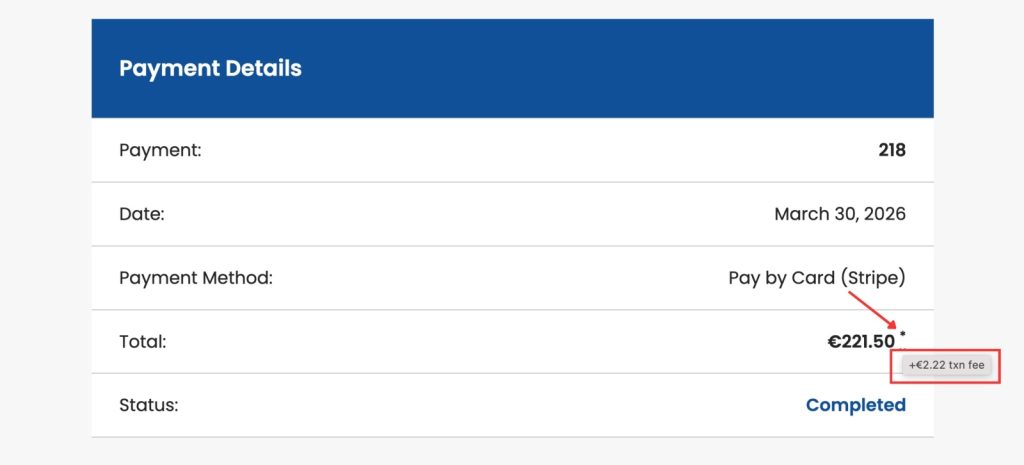
On the booking confirmation page, the total amount is marked with an asterisk. When guests hover over it, they can view the breakdown of the transaction fee.
Transaction fees are not included in booking confirmation emails or invoices.
However, guests can still view the fee details on your site by opening the booking confirmation page via the link in the email.
On your side, you can check the exact fee in the booking details. Open any booking from the Bookings menu and look at the total price breakdown.
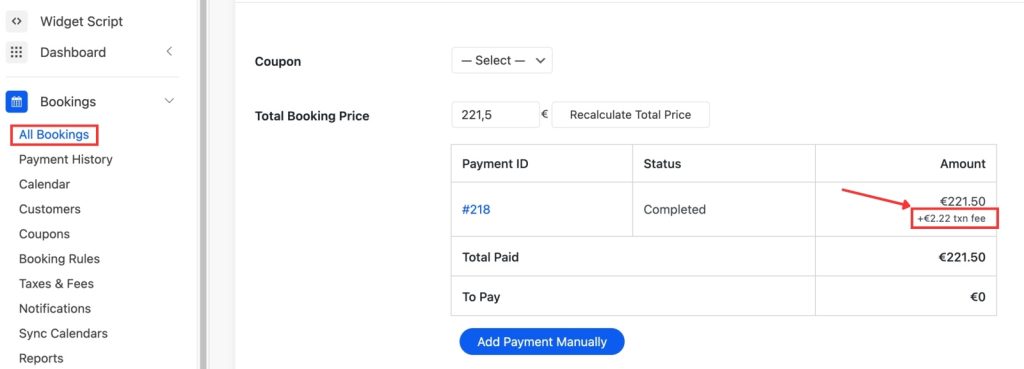
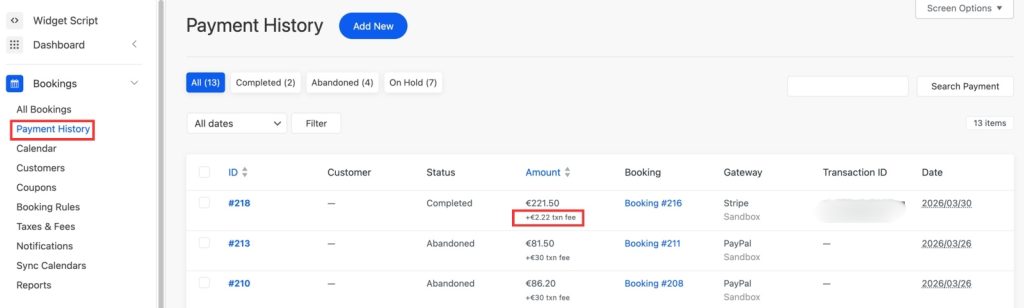
You’ll also find this information in the payment history. Each transaction now includes a separate “Added Txn Fee” field, which is not editable.
📗 Free resources: How to Create an Airbnb Welcome Book [+Free Template]
Using it in different payment scenarios
The feature works not only for instant payments but also for more flexible booking flows.
- Payment requests: If you send a payment request, the transaction fee is still displayed when the guest is paying the due balance.
- Accommodation-based payment setups: In setups where payments are configured per property, fees can be applied individually depending on the accommodation.
If you need to enable accommodation-based payment options, please contact us with the request.
💡 Compare: Best Vacation Rental Website Builders for Direct Bookings
Display the Multi-Property Availability View
Another improvement in BNBForms focuses on how guests explore your properties. Instead of checking each listing separately, you can now display availability for multiple properties in a shared calendar view.
The layout is simple:
- dates across the top;
- properties listed down the side;
- availability shown directly in the grid.
It’s not a booking calendar in the traditional sense. It’s designed to give a quick overview so guests can compare options at a glance.
How to add it to your website?
In BNBForms, the calendar is added as a block inside a page in your account. Go to Pages > Add New Page.
Then, click the ‘+’ icon and insert the Multi-Property Availability Calendar block.
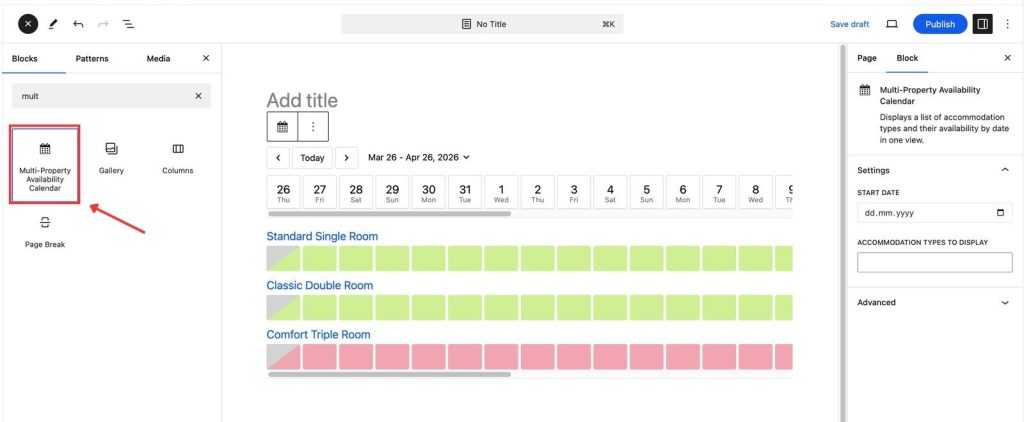
Once added, you can choose which properties to display. If you don’t select specific ones, all available properties can be shown by default.
You can also adjust the starting date. For example, to highlight:
- an upcoming season;
- a holiday period;
- or future availability only.
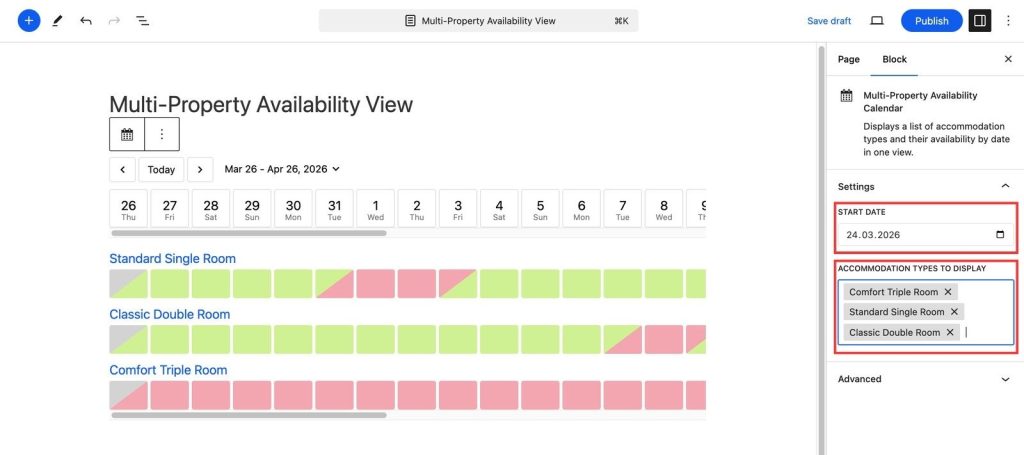
After publishing the page, you should include it in your website navigation.
Navigate to Appearance > Menus > Add Menu Items and include this page in the footer area of the BNBForms accommodation booking widget.
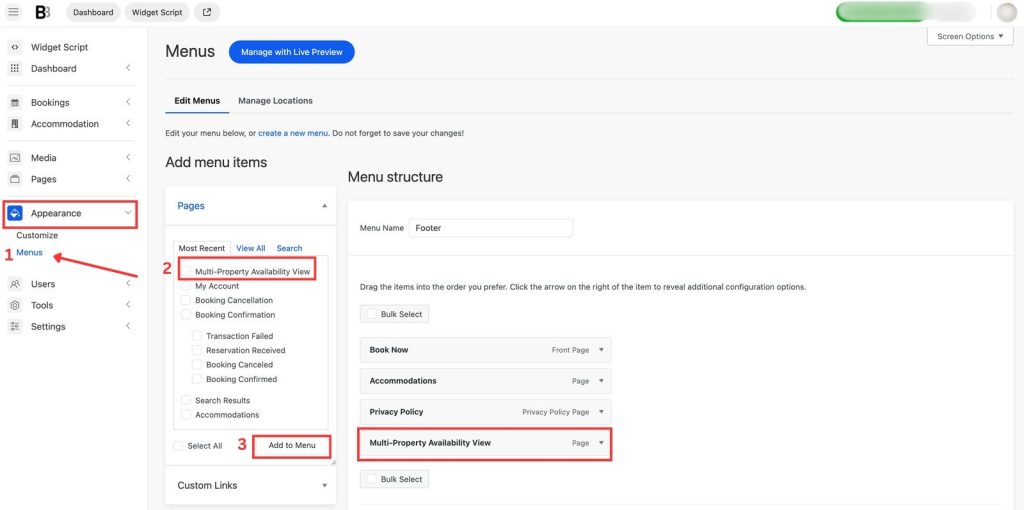
Once added, the calendar uses simple color-coded statuses to make availability easy to understand at a glance.
On a desktop, guests can hover over a date to see more details. They can’t book directly from the calendar, but they can use it as a starting point. Each property name is clickable, so once they find suitable dates, they can open the page, check the details, and complete the booking there as usual.
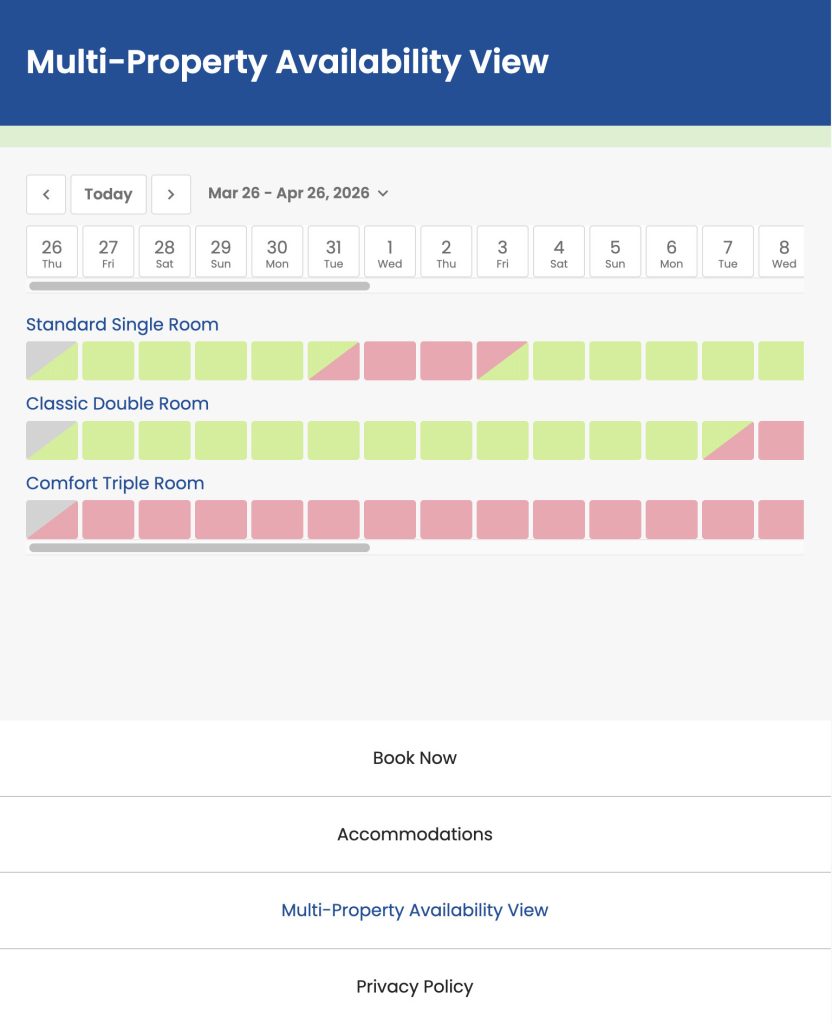
If needed, you can also open this page inside the booking widget (for example, via a button or link on your site). See the full guide in the documentation for setup details.
🧽 Optimize: Best Cleaning Apps for Short-Term Rentals
Let’s sum up
These BNBForms updates focus on improving the parts of the booking process you deal with every day.
- You can now avoid payment processing fees and pass them to guests to manage transaction costs more efficiently.
- With BNBForms, you can display availability across multiple properties in one place, making it easier for guests to compare options.
Together, these improvements help you keep pricing transparent and guide guests through a smoother experience.
New to BNBForms? Browse Widget Demo or Start Your Free Trial.