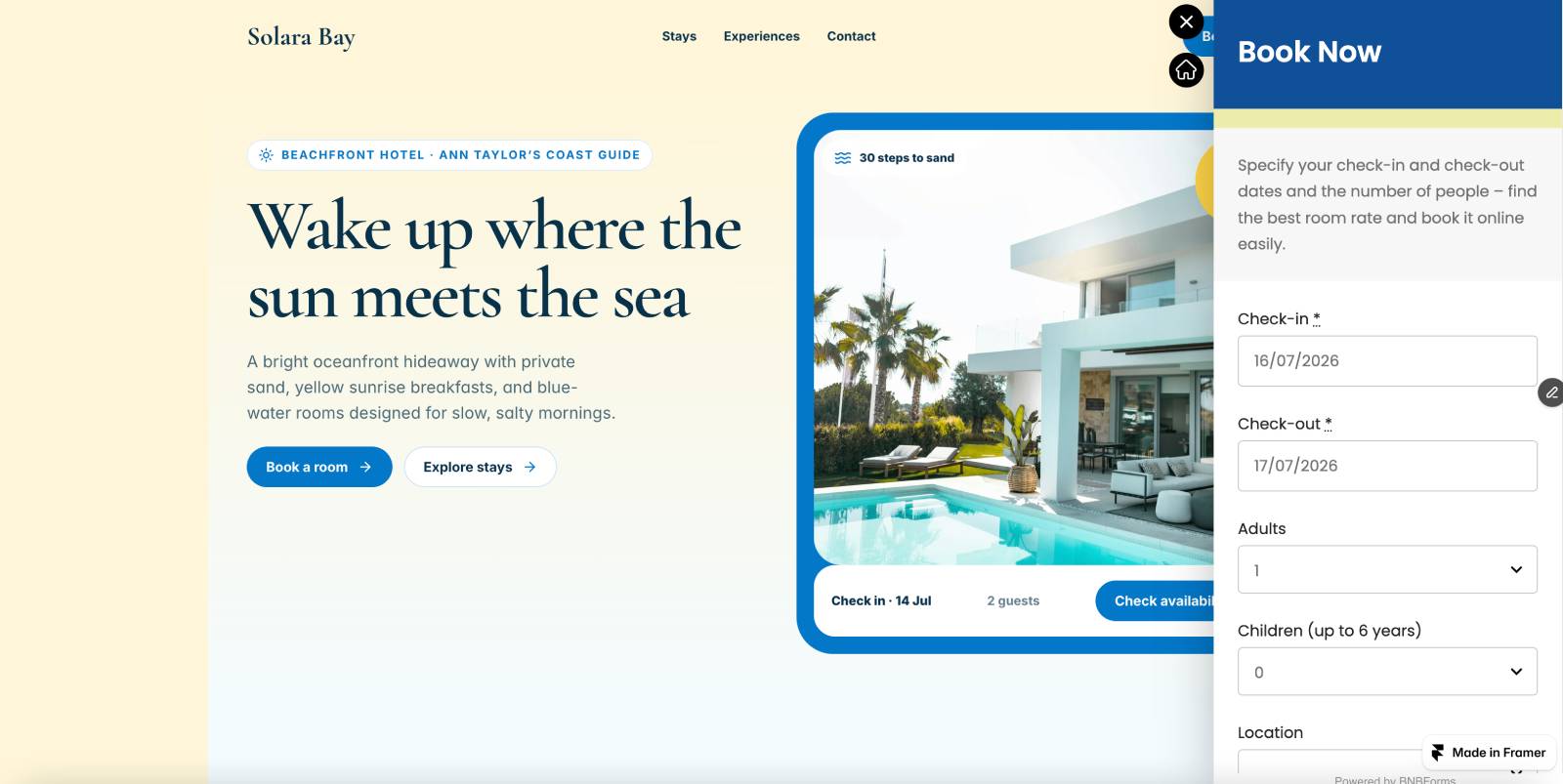
If you want to embed a direct booking widget to your Framer vacation rental website, you can easily do that with this tutorial.
Follow these steps to embed the BNBForms booking widget and start accepting reservations.
Step 1: Open the Insert Menu
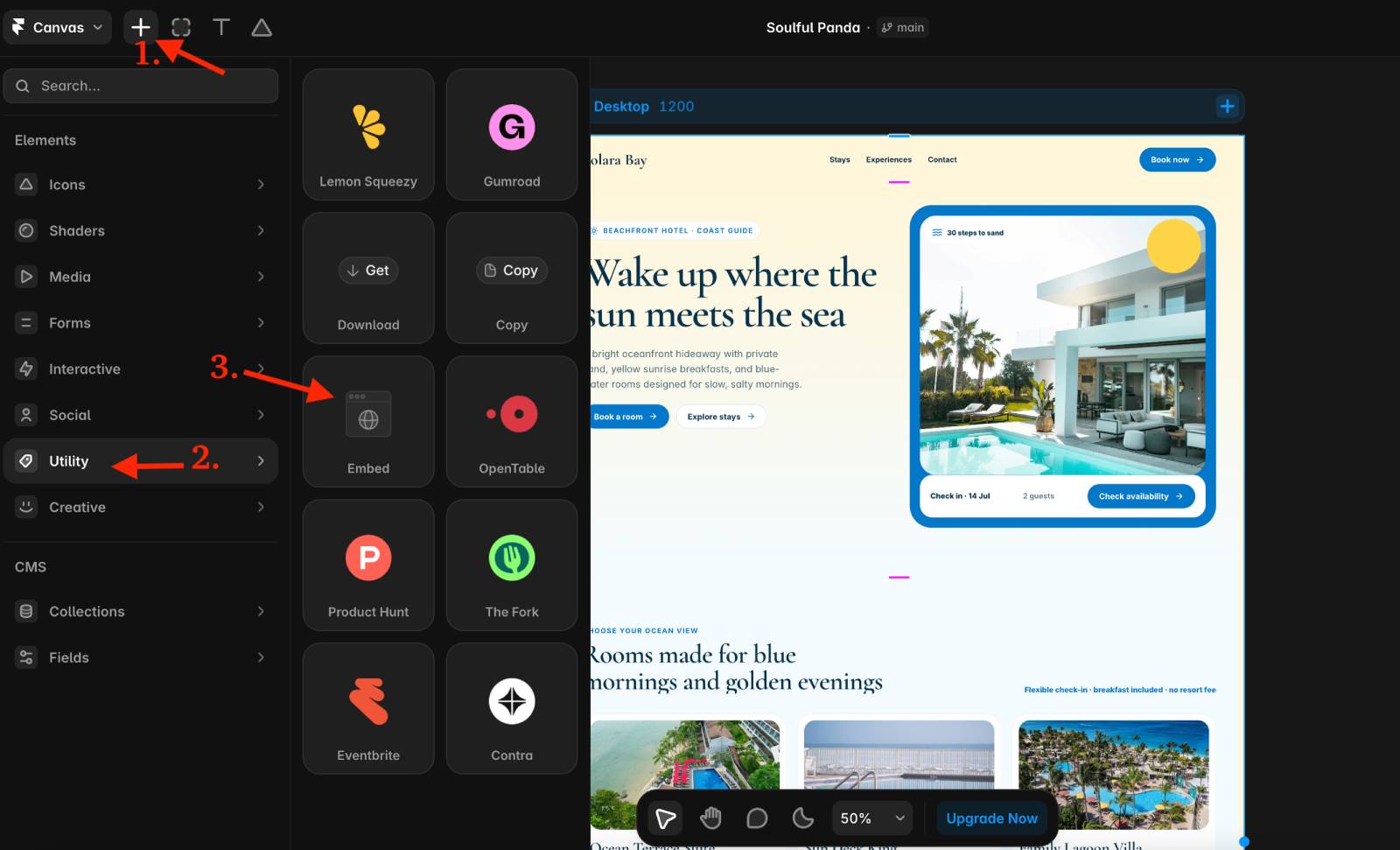
Open your website project in Framer and navigate to the Insert menu.
In the Utility section, find the Embed component.
Step 2: Add the Embed Component
Drag the Embed component onto the desired page of your Framer website.
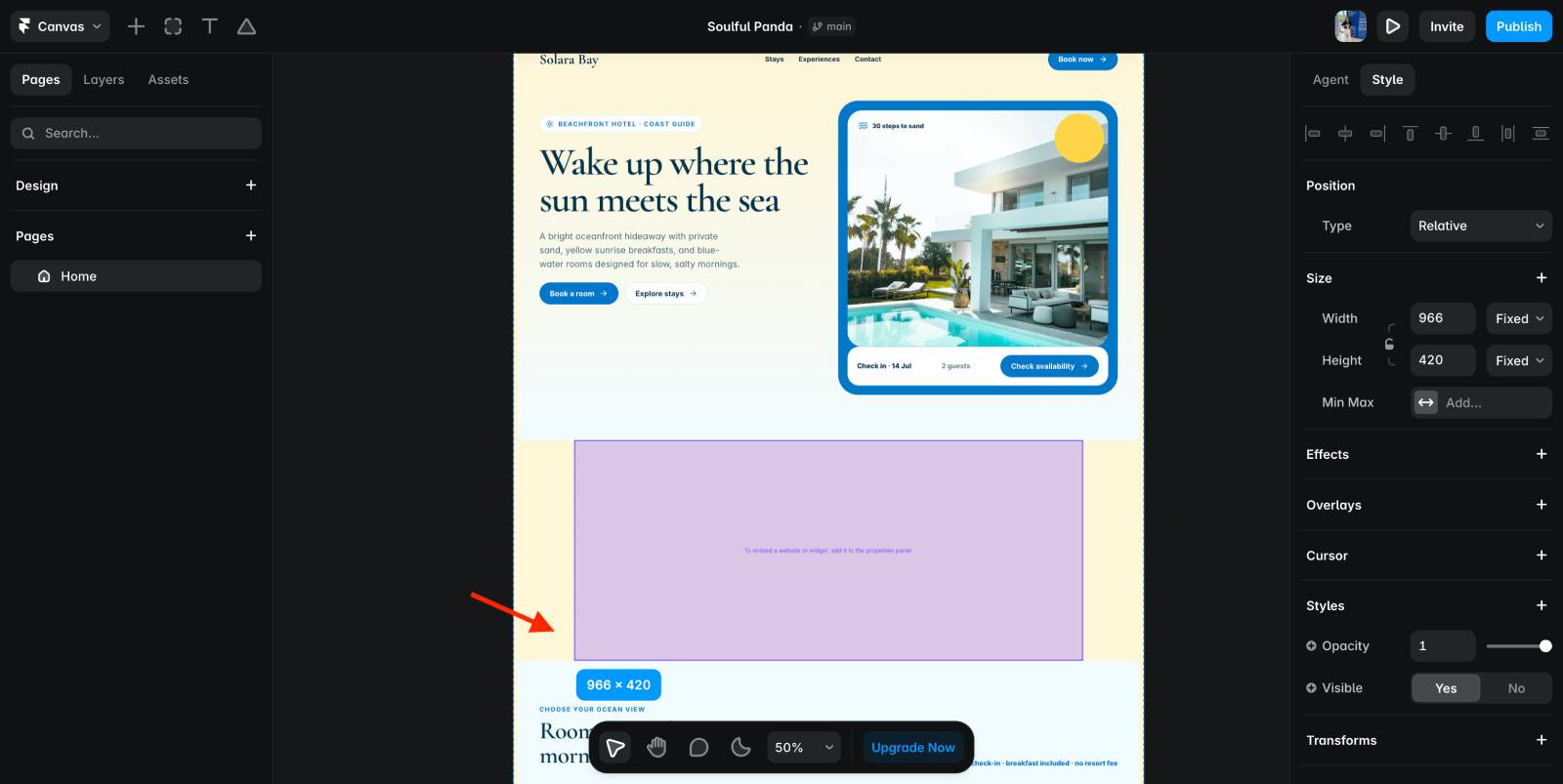
You can then resize and position the component to fit your page layout.
Step 3: Embed the Booking Widget into Framer: 3 Options
- URL embed → only if you want Framer to generate the iframe automatically.
- iframe → if you want a dedicated Booking page with the booking form embedded.
- Widget script → if you want the floating “Book Now” button on every page.
Option 1. URL Embed
In the Embed component settings, select the URL option.
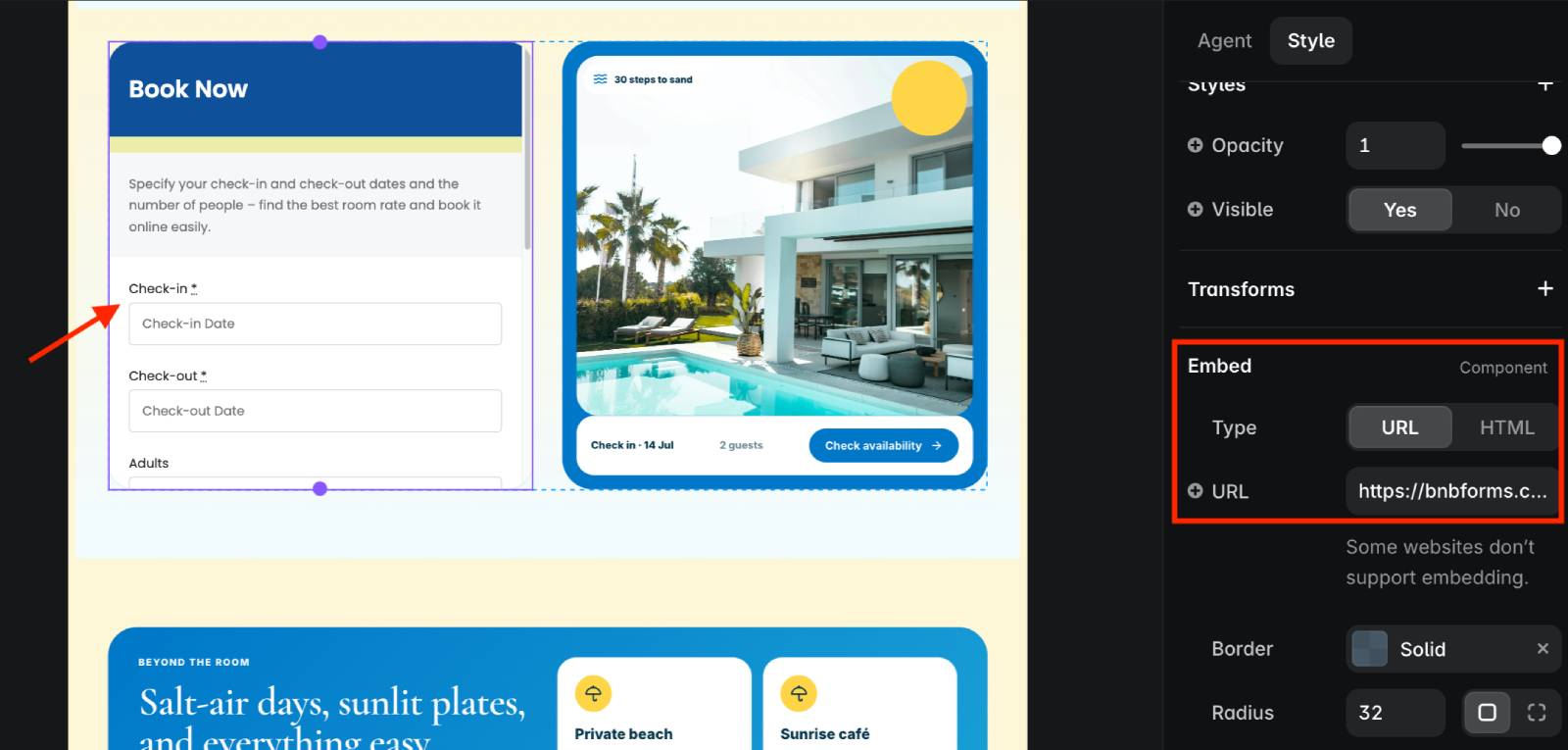
Paste the URL of your BNBForms booking widget into the URL field. It may look like this:
https://bnbforms.com/100112/
The booking widget will then appear directly on the selected page.
Option 2. iFrame Code
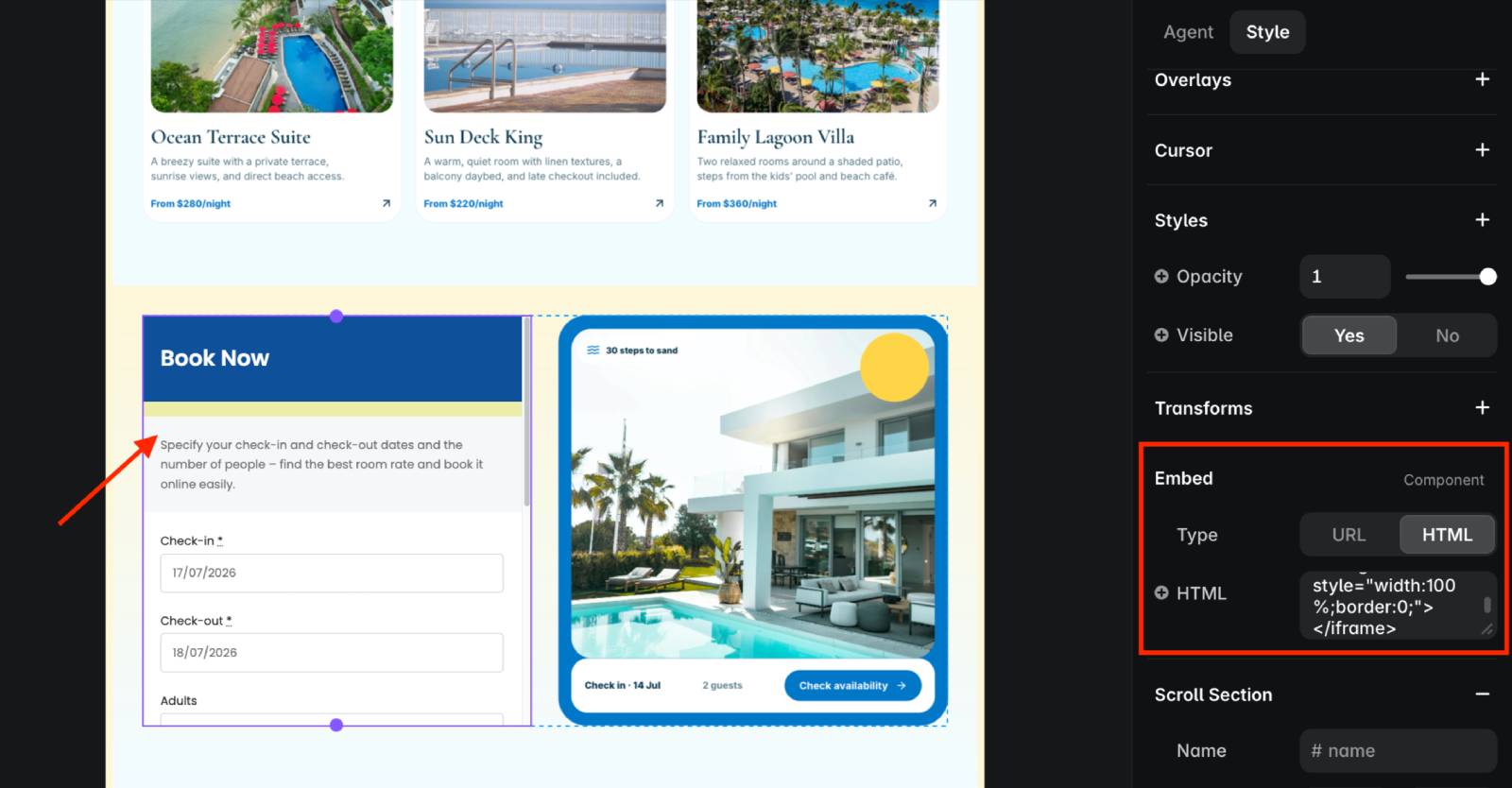
Framer’s Embed component also supports custom code through its HTML mode.
Switch to the HTML option and paste the code snippet provided by BNBForms via Dashboard > Widget Scrip > Scroll down to the iFrame code (‘3. You can alternately embed booking widget on a single page’) > Copy code > Insert into Framer (HTLM tab).
Option 3. Widget Script
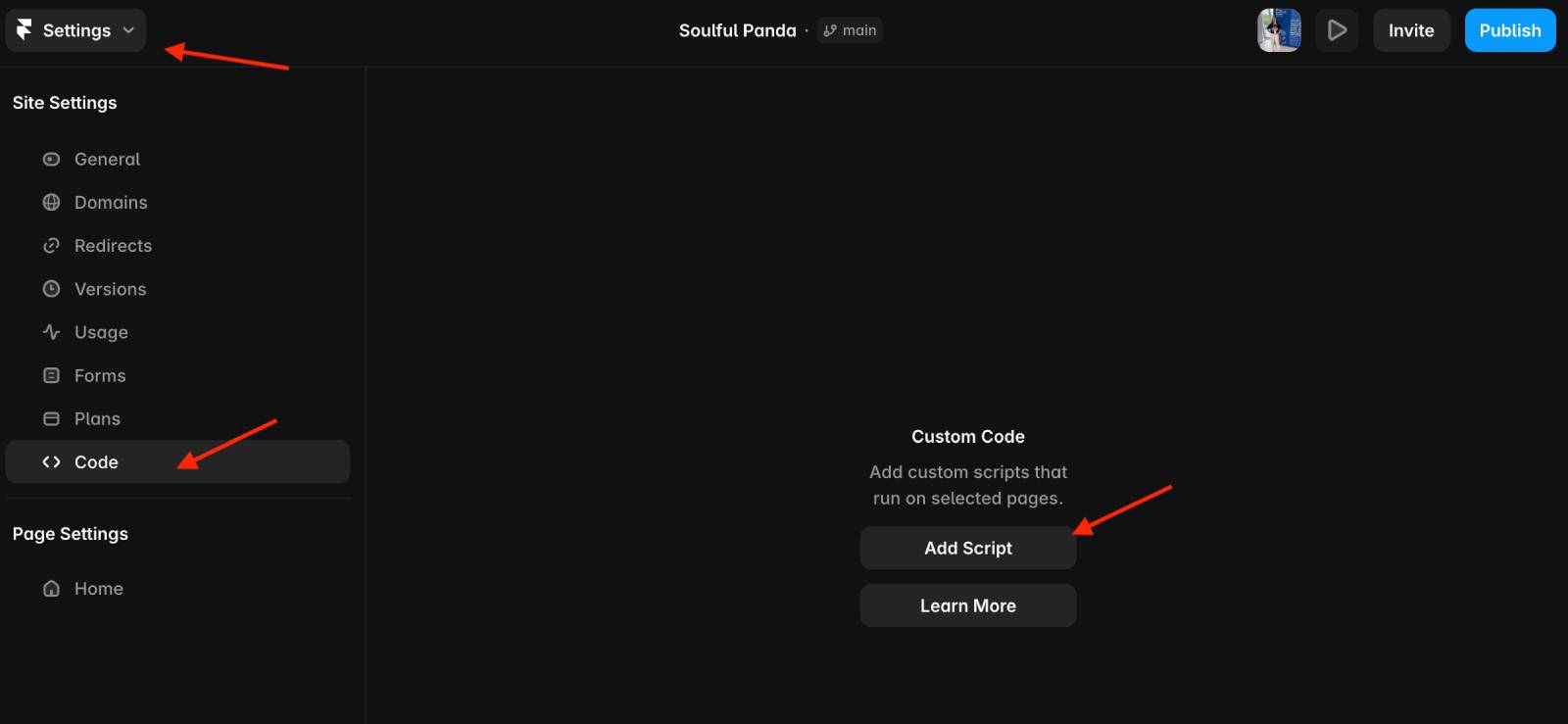
If you want the Book Now button to appear across your entire Framer website, you can add the BNBForms widget script using Framer’s Custom Code feature.
- Open Project Settings.
- Select the Code tab from the left sidebar.
- Click Add Script (or Add if you already have other scripts).
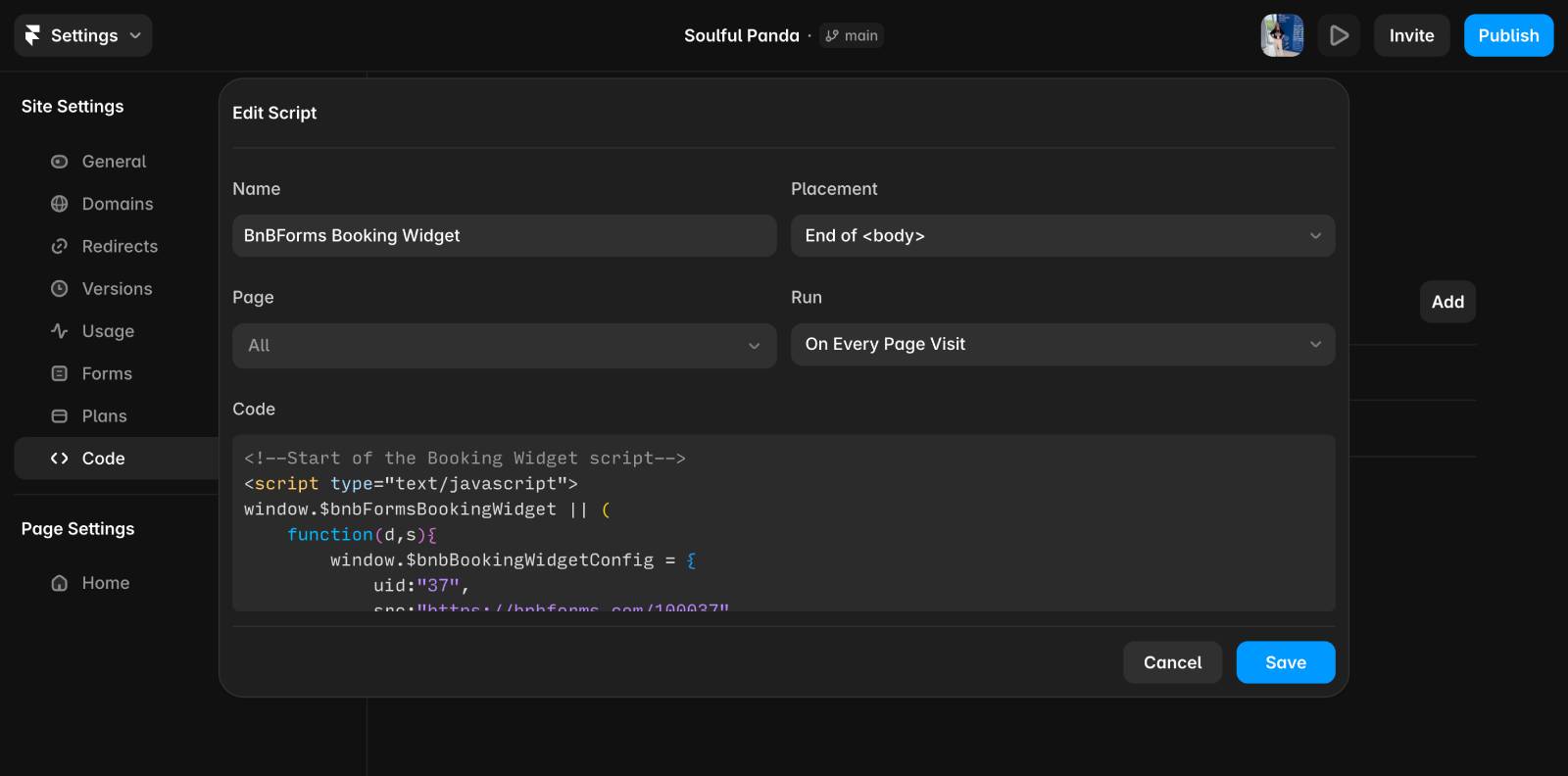
- Enter a descriptive name for the script, such as BNBForms Booking Widget.
- Set Placement to End of <body> (recommended).
- Select All pages, or choose specific pages where you want the widget to appear.
- Set Run to Run on every page visit.
- Paste the code snippet provided by BNBForms via Dashboard > Widget Script (“1.Copy booking widget script”) > Copy.
- Paste the BNBForms widget script into the Code field, then save and publish your website.
You should see the Book now button:
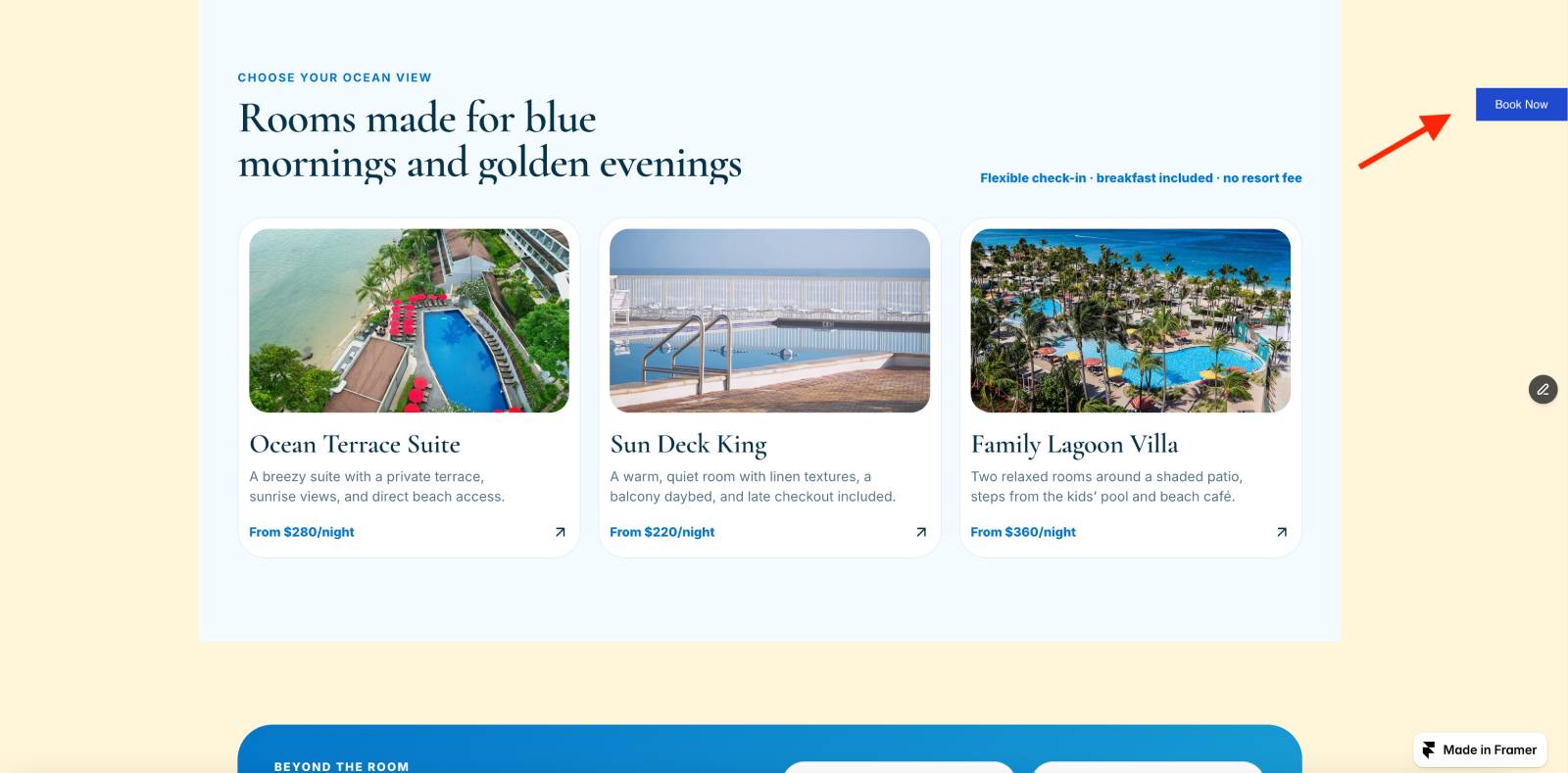
Note: The floating widget will only appear on your published website. It may not be visible while previewing your project inside the Framer editor.
Step 5: Publish Your Changes
Once the widget has been added and configured, click Publish or Update in the Framer editor.
Your BNBForms booking widget will now be available on your live Framer hotel website, allowing guests to check availability and book directly.