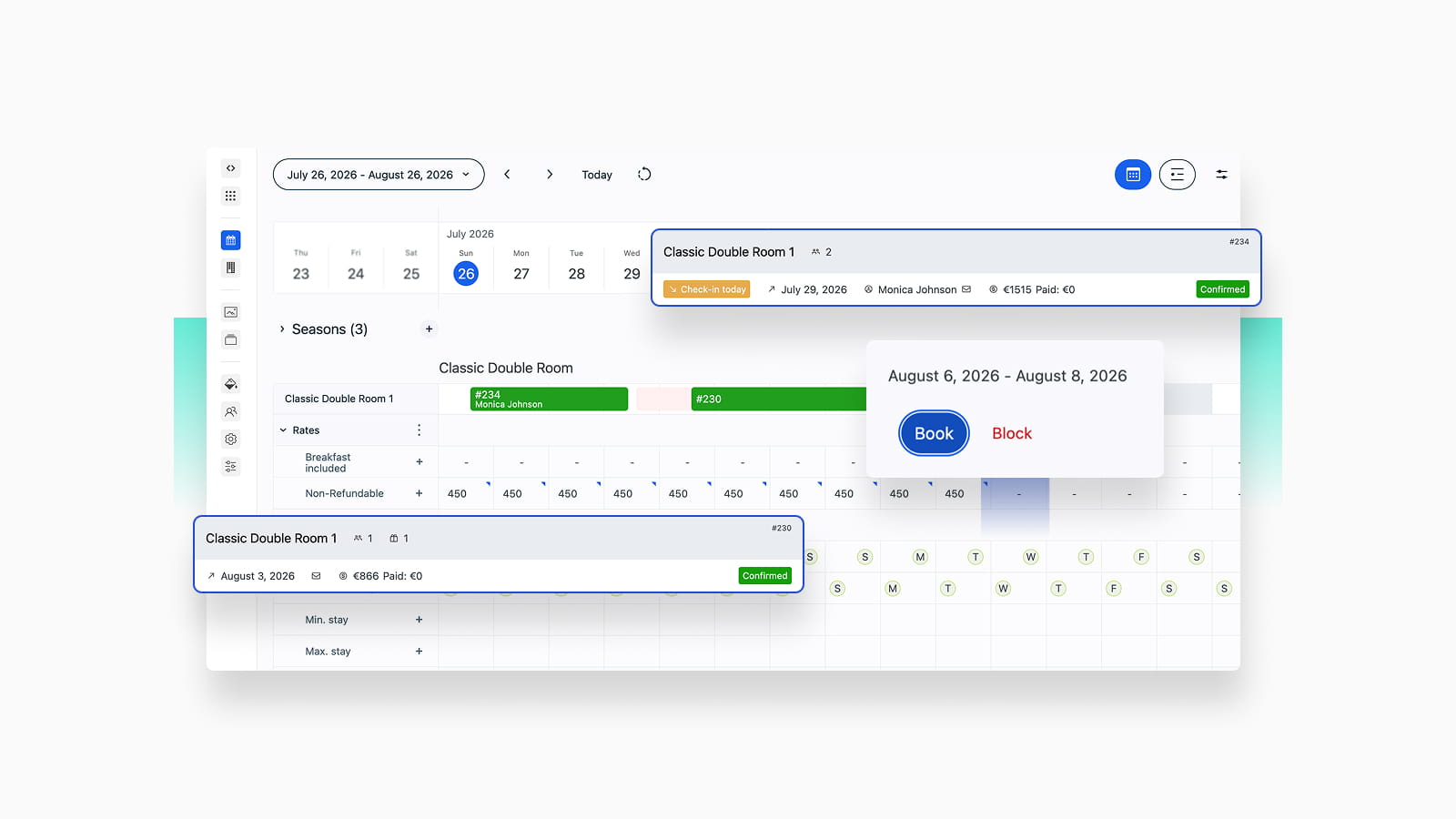
BNBForms now gives you a more visual way to manage properties, bookings, availability, and pricing from one screen you can find under Bookings > Calendar (Beta).
It’s a brand-new visual interface where you can review reservations on the timeline, book or block dates, adjust rates, and access important booking rules. You could do that before but through switching between different menus.
In addition to handling everyday tasks from a centralized property management dashboard, you can now set different prices for individual dates, offer Apple Pay* and Google Pay through Stripe, and reserve guest funds before deciding whether to complete the charge. You may also quickly see who is currently styling at your property and who will arrive soon.
Interested in details?
*Apple Pay is currently in Beta. Availability may vary depending on your Stripe account settings, supported region, and successful domain verification.
# 1 Manage properties, bookings, and prices from one screen (Calendar Beta)
BNBForms now comes with a fresh calendar that functions more as a professional property management dashboard!
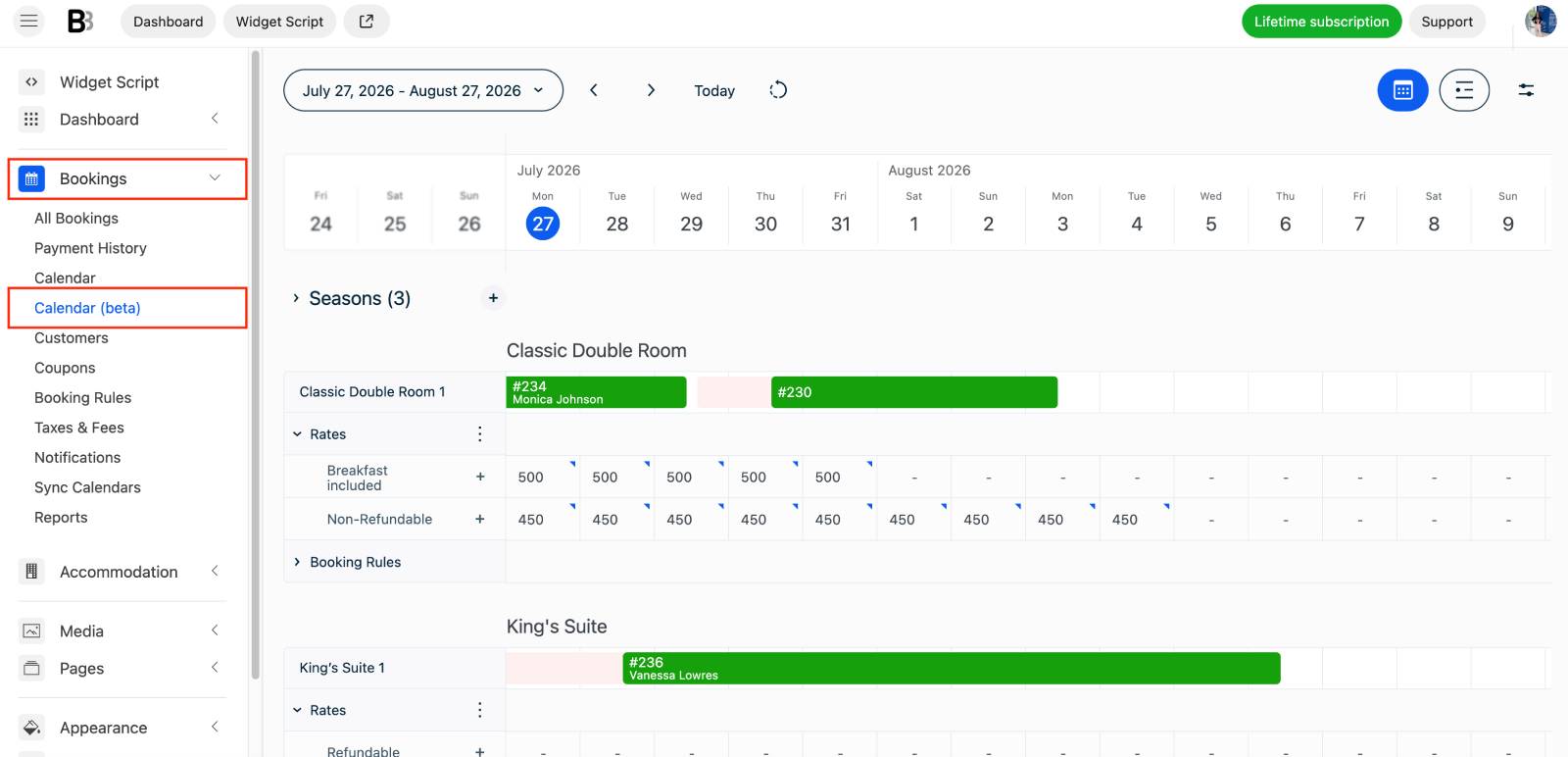
Thanks to such a visual calendar-based interface, you have a more intuitive way to work with your properties, reservations, rates, availability, and booking rules. Want to add a booking? Just select dates. Want to add or customize rates? Also possible in the same dashboard.
You may still optionally use multiple menus and settings as before, but you can also perform many common actions directly from the property timeline: review bookings, block unavailable dates, create manual reservations, and update prices.
Access the new dashboard from Bookings > Calendar Beta in your BNBForms account.
Here is a quick overview of what you can do:
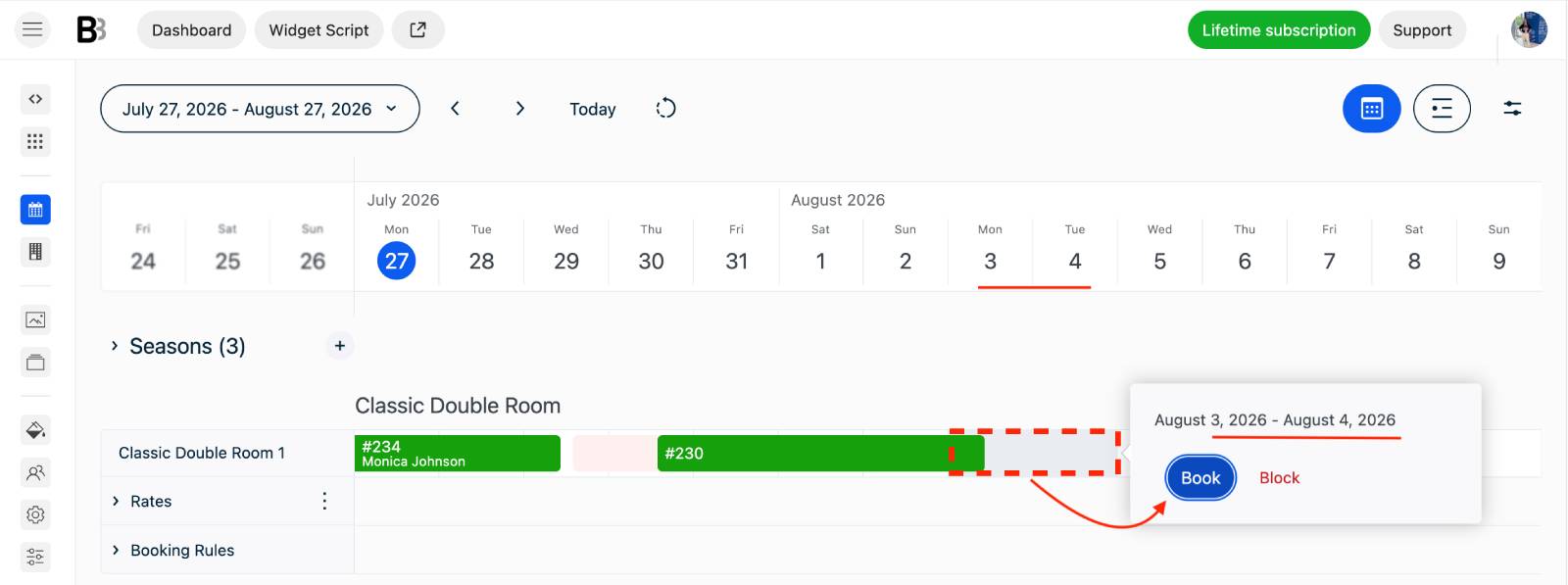
- Add manual bookings or block unavailable dates directly on the timeline. Select a property, click and drag across the required dates, and choose Book or Block.
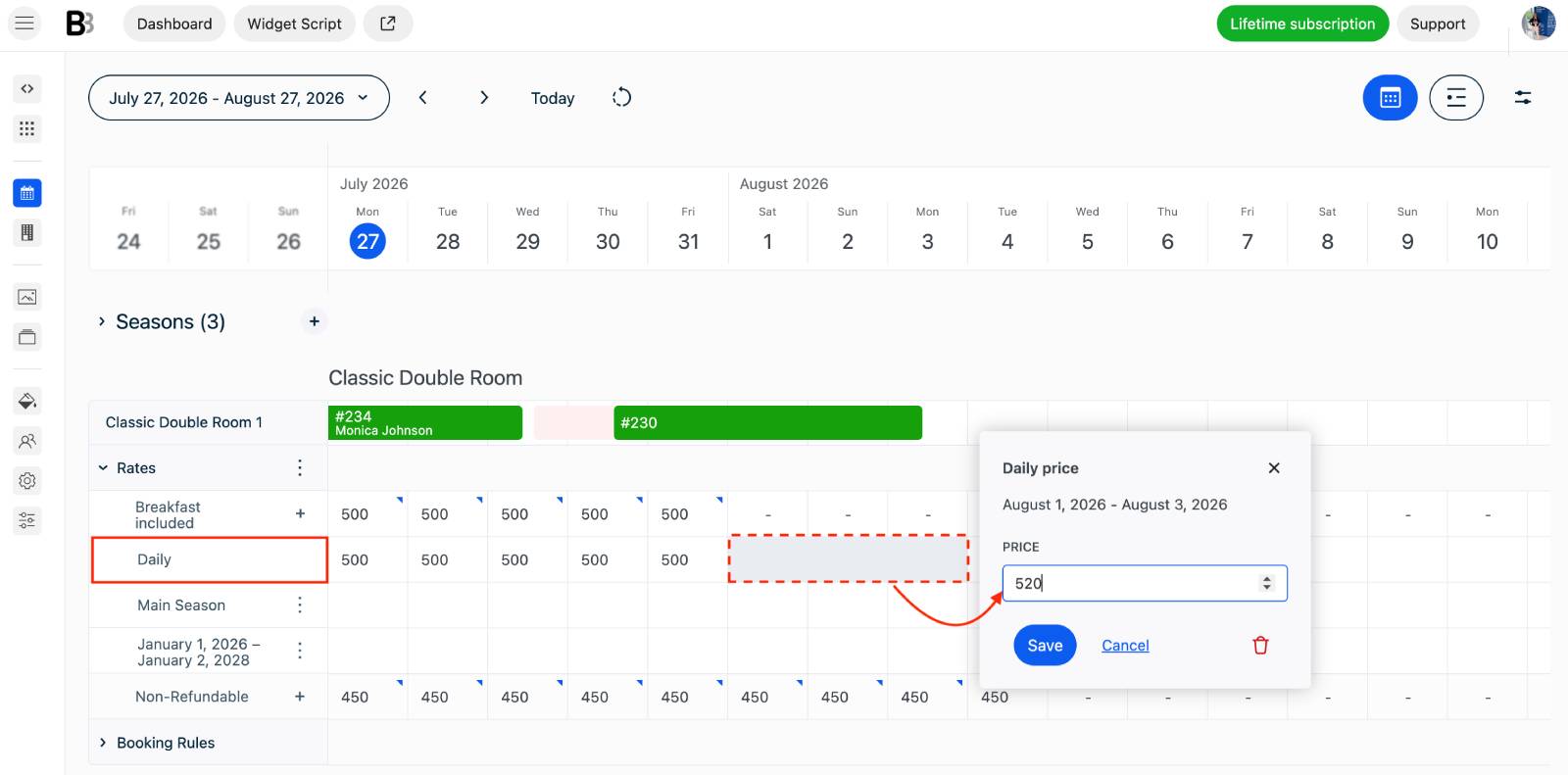
- Use Daily Pricing to set custom rates for individual dates or date ranges. Select a property, open Rates, choose the required rate, find Daily, select or drag across the dates, enter the price, and click Save.
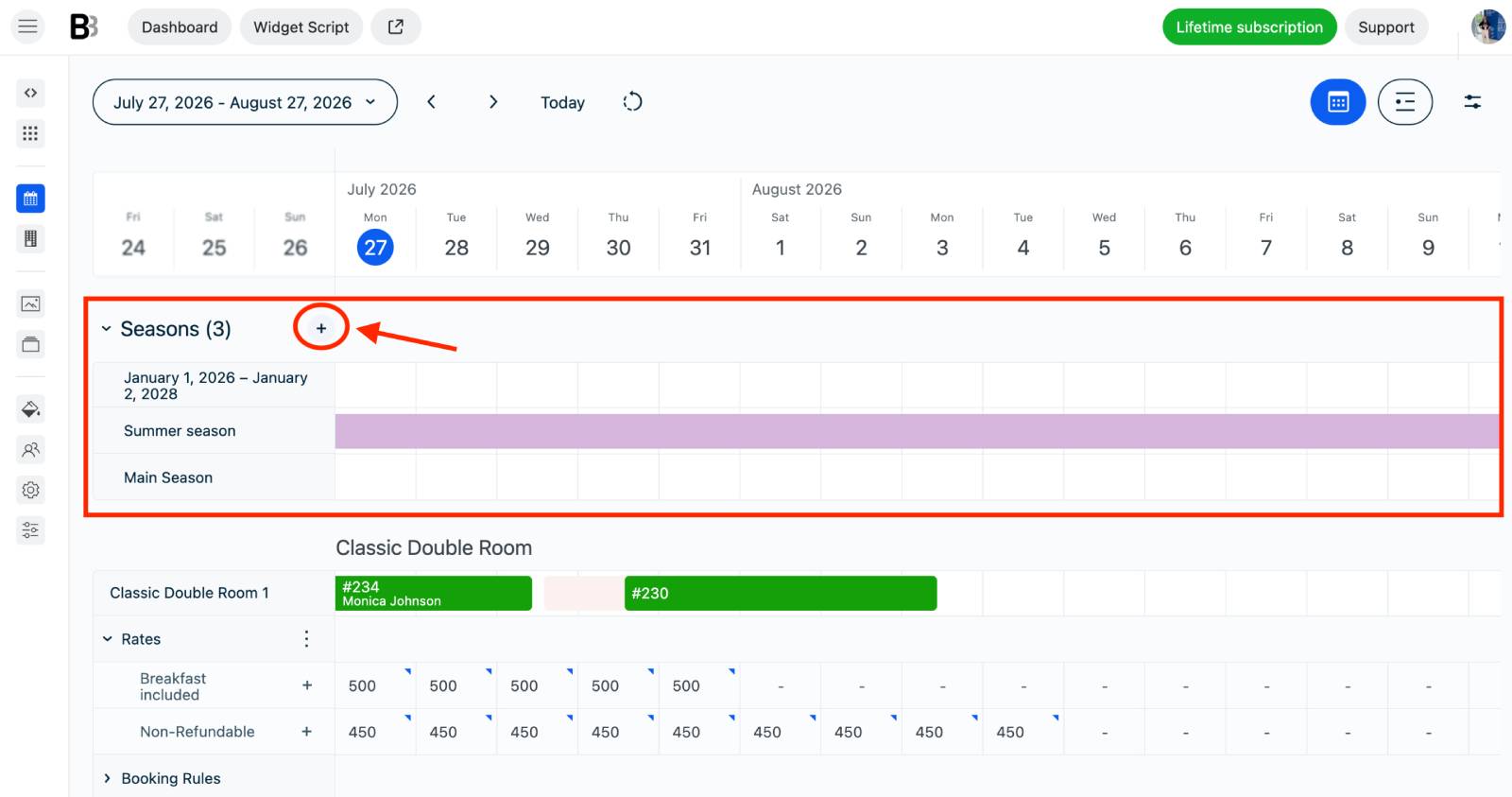
- Create and edit Seasons directly in the calendar. Click the + next to Seasons to add a new one. The current season is color-coded purple.
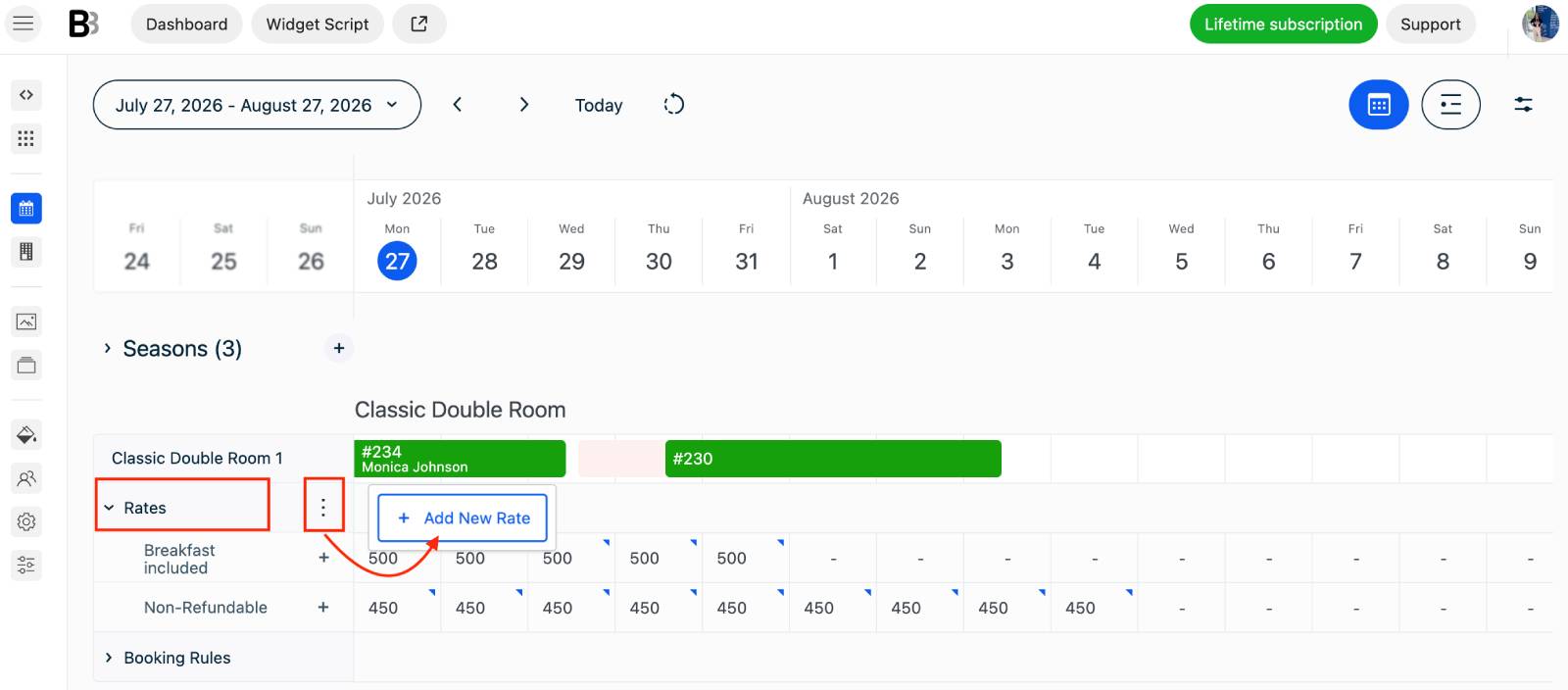
- Add property-specific Rates without leaving the calendar. Open the three-dot menu and select + Add New Rate.
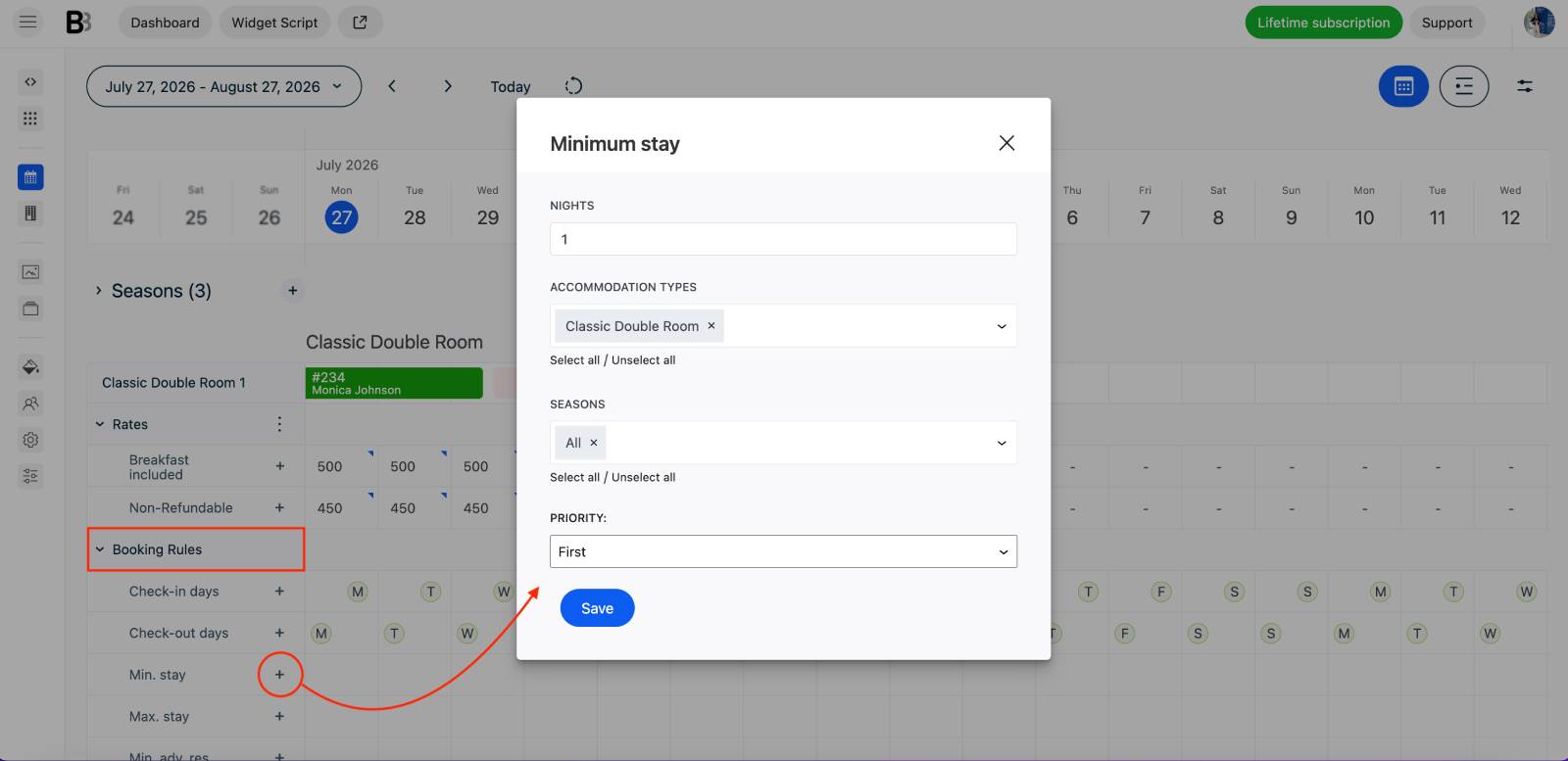
- Set Booking Rules such as minimum stays, allowed check-in and check-out days, booking buffers, and advance reservation windows. Open Booking Rules and click + to create a new rule.
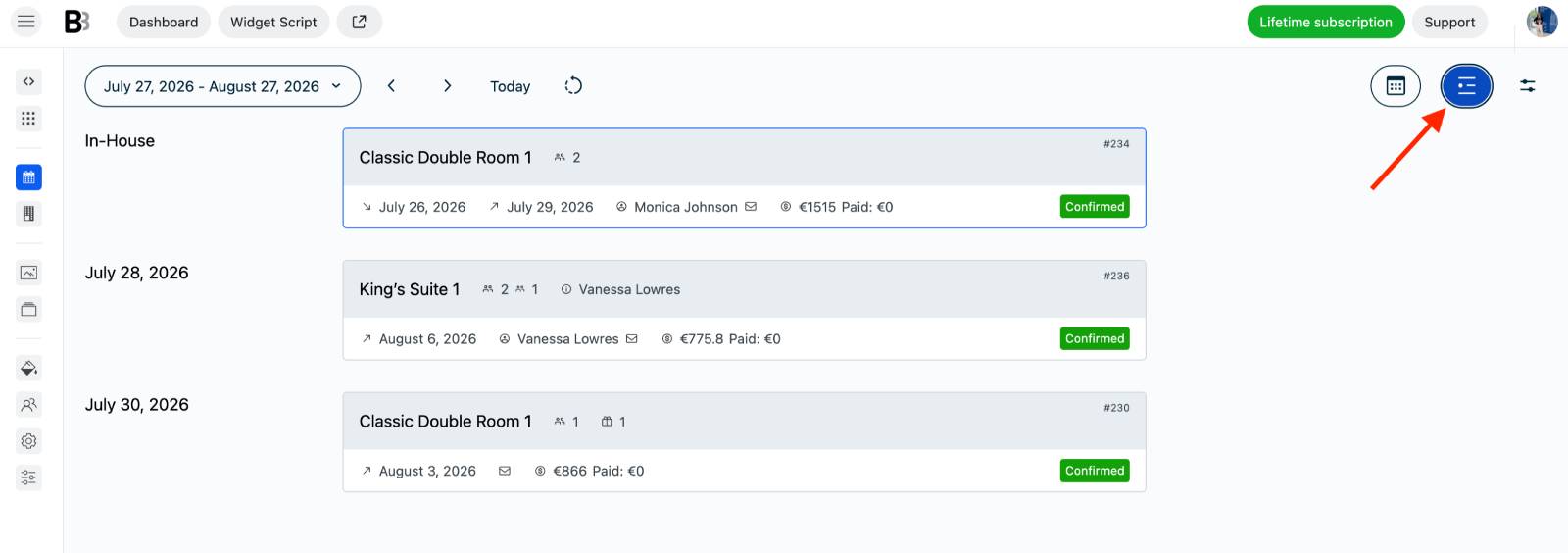
- Switch to the compact List View to see today’s check-ins and check-outs, upcoming arrivals, and current stays in one organized overview.
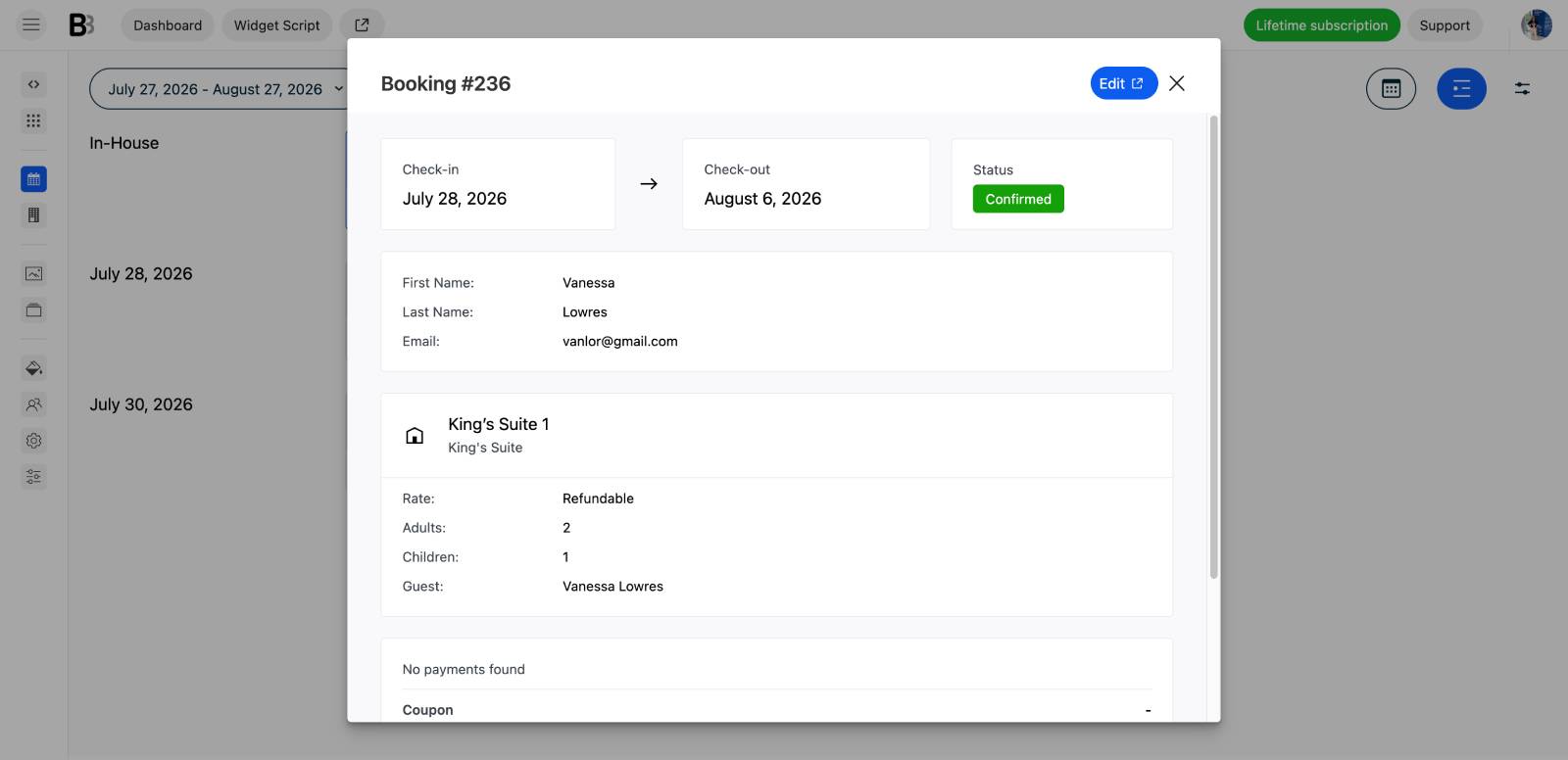
- Click on a booking via any interface to quickly review guest details, booking statuses, payments, and dates. You may also click Edit to jump to a specific booking and update it.
One of the biggest additions you will most likely use is daily pricing.
You can now select a specific date or range of dates on the property timeline and assign a custom price without creating or updating the main rate or season.
For example, you can quickly raise the accommodation price for a local event, create a weekend rate, offer a last-minute discount, or adjust prices for a holiday period – without a need to update or change rates or seasons.
To use daily pricing, open Calendar (Beta), select the property and rate you want to edit, and choose the dates directly on the timeline. You may drag your mouse through many dates.
Your regular seasonal rates remain unchanged, while the custom daily price applies only to the selected dates.
#2 Accept Apple Pay*, Google Pay, and more with Stripe
The BNBForms Stripe integration is now much richer, giving you access to ALL payment methods that you can access in Stripe.
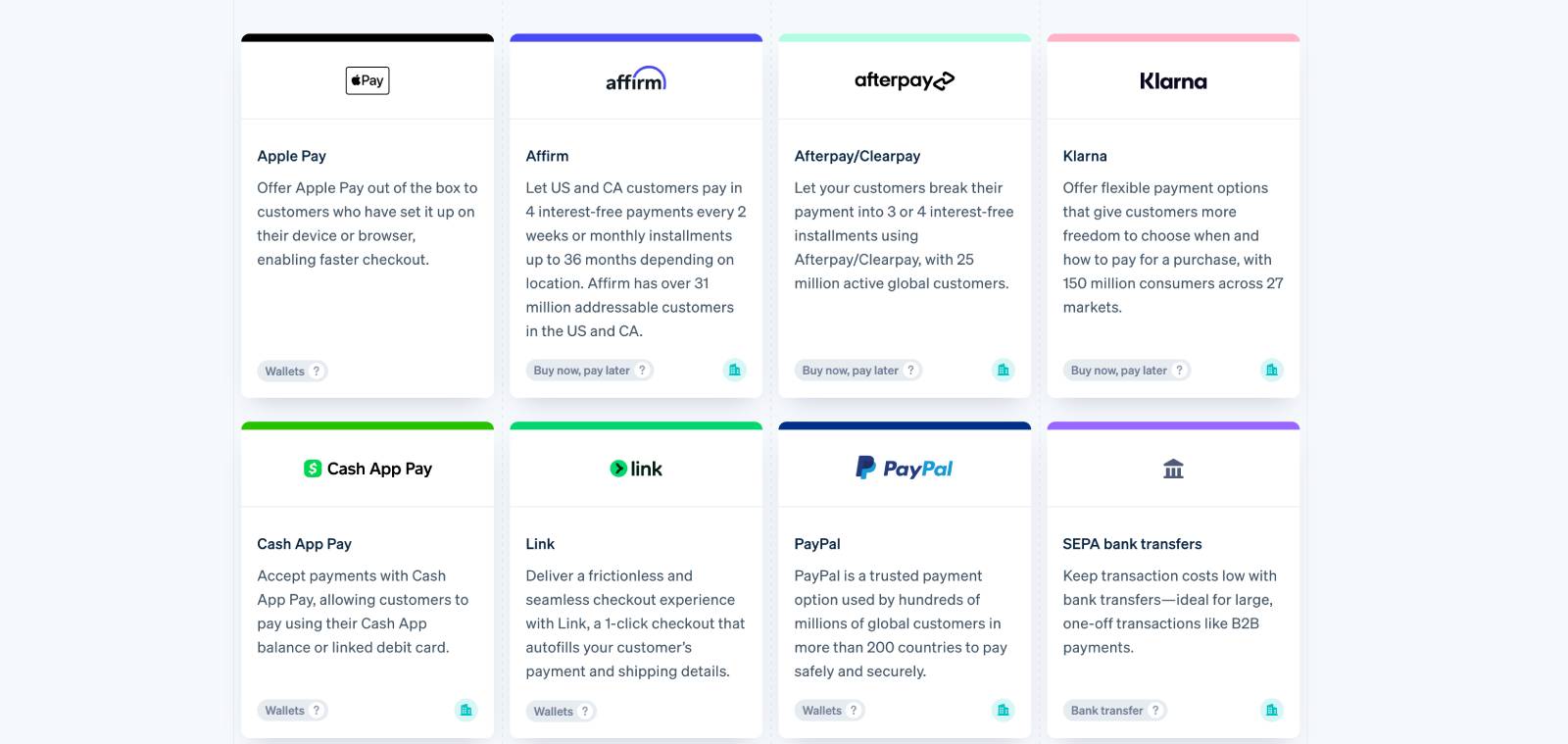
You may now allow your guests to pay with convenient digital wallets such as Apple Pay* and Google Pay or enable over 100 local gateways, including Link, Cash App Pay, WeChat Pay, Klarna, etc.
These options can make your direct booking checkout faster because guests can pay using the payment details already saved on their devices and more familiar gateways available in their region.
You can manage available payment methods from the Payment Methods section of your Stripe Dashboard after enabling Stripe in BNBForms:
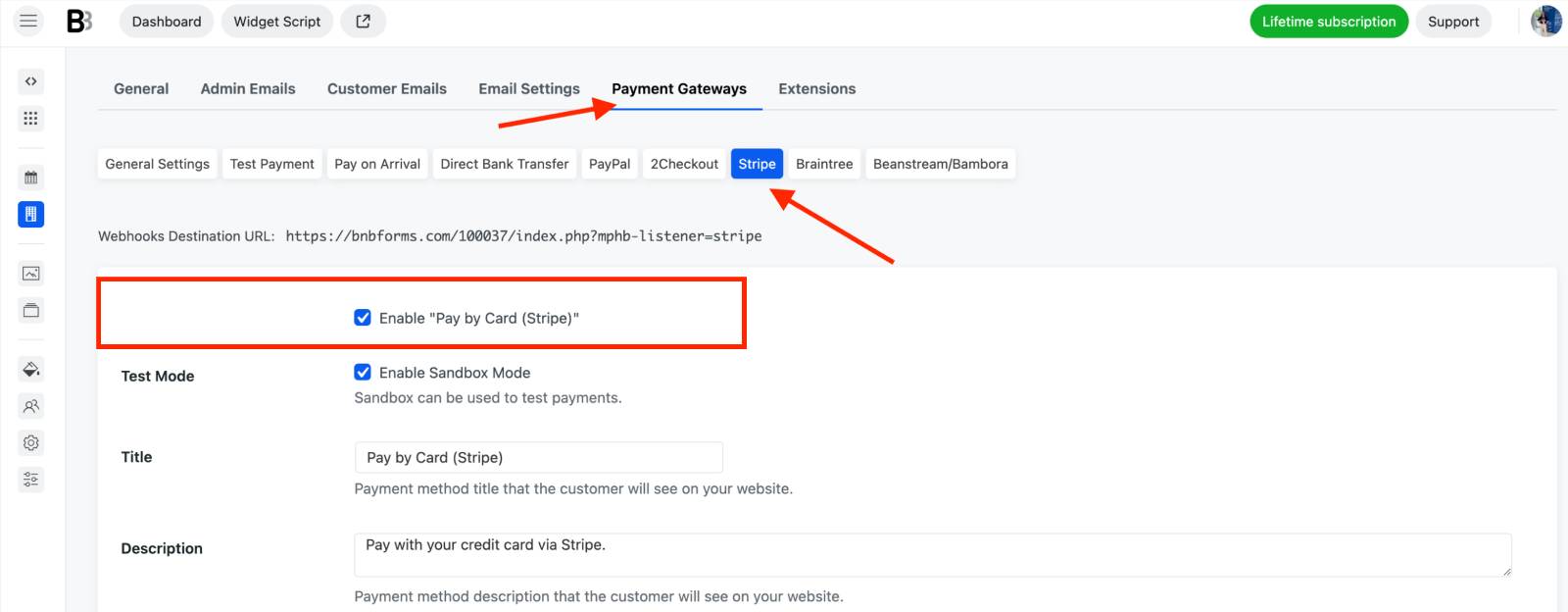
Accommodation > Settings > Payment Gateways > Stripe > Enable > Payment Methods > Insert your Stripe configuration ID.
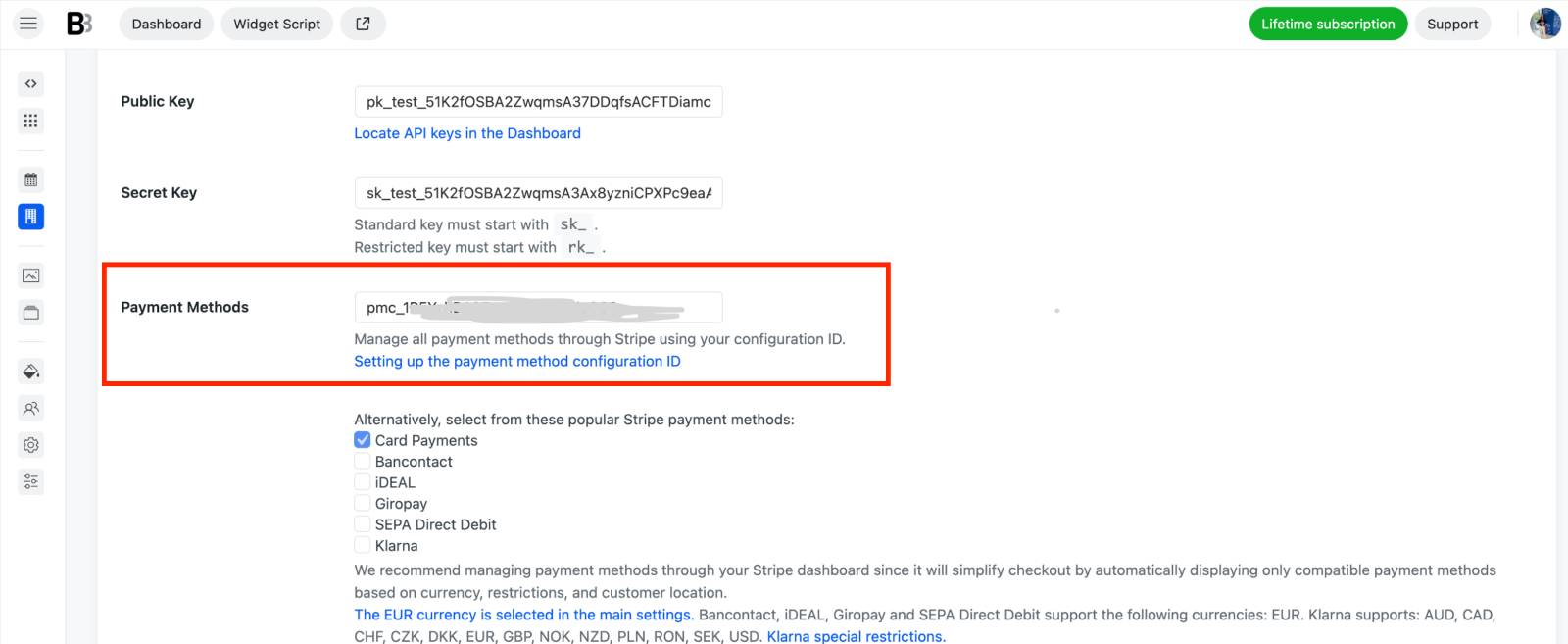
Where to find your ID in Stripe? Go to Stripe payments > copy your ID or create a project first to generate and copy it.
Also, along with the other settings, you need to add your secret key and public key. This will allow you to use any Stripe payment gateways you’ve enabled on your Stripe account.
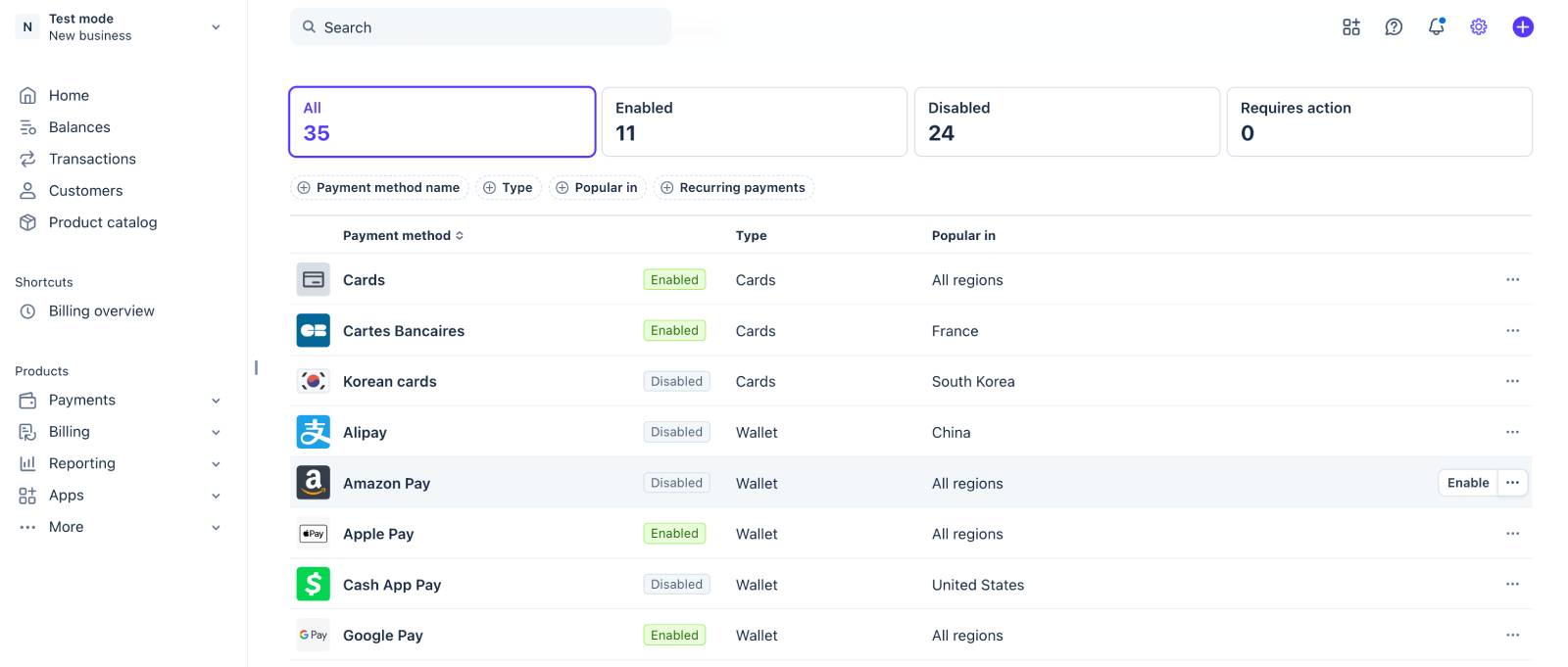
Simply log into your Stripe and enable the needed payment methods by clicking “Enable” next to the chosen method. When your Stripe is connected to BNBForms, these same methods will be displayed to your guests at checkout.
The exact options shown during checkout depend on factors such as the guest’s country, currency, browser, and device.
For example, Apple Pay* and Google Pay appear only when supported by the customer’s setup.
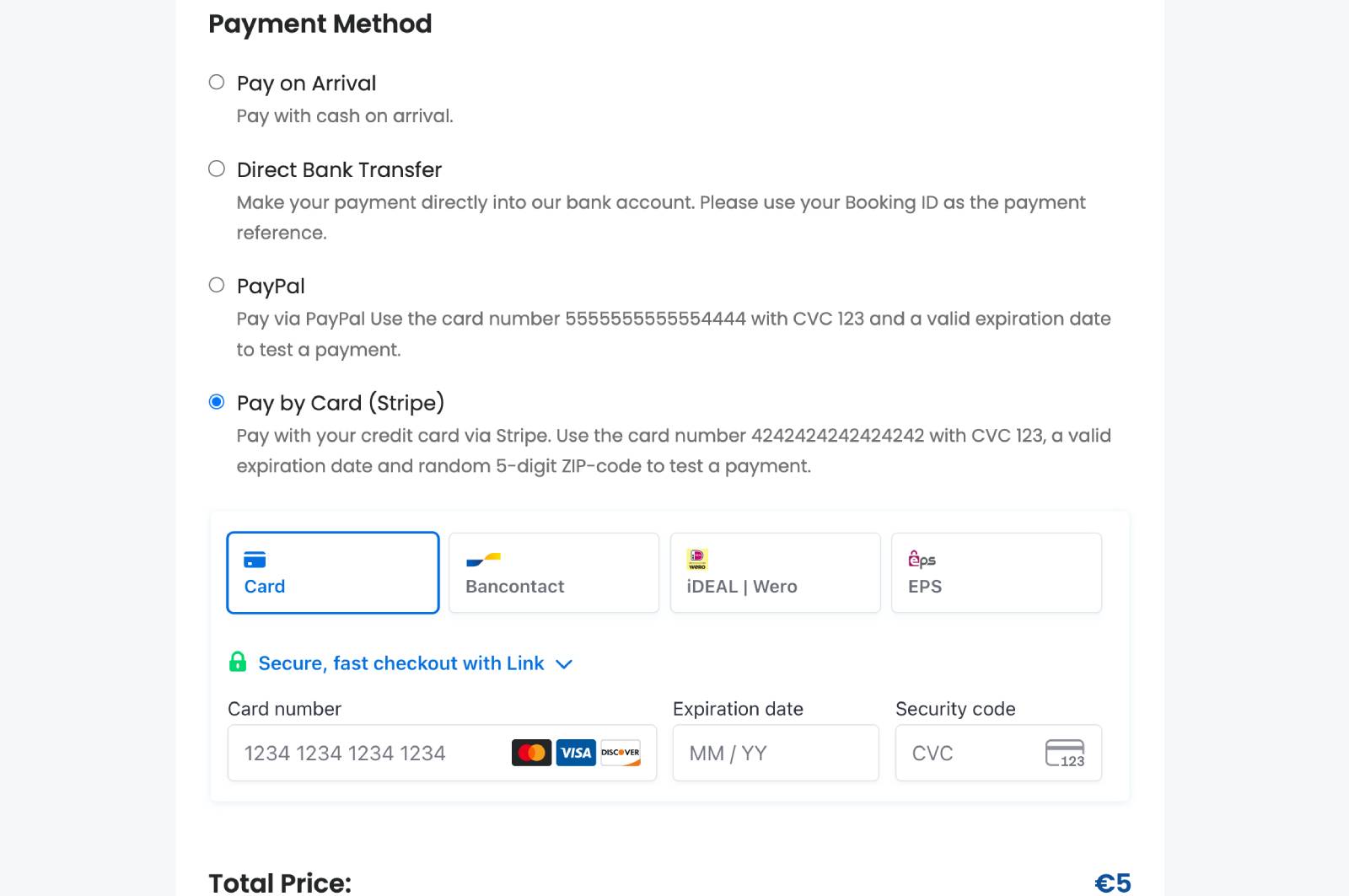
*Apple Pay is currently in Beta. Availability may vary depending on your Stripe account settings, supported region, and successful domain verification.
Stripe requirements and limitations
Please remember that some Stripe payment methods have additional requirements. Apple Pay* may require domain verification, HTTPS, and extra Safari or iOS configuration. Apple Pay* and Google Pay appear only on supported devices and browsers.
Availability can also depend on the customer’s country, your Stripe account location, business registration, and currency. For example, Klarna is available only in supported regions, while WeChat Pay is mainly intended for customers in China.
Stripe automatically shows only the payment methods available for each customer and transaction.
We also recommend to enable Sandbox Mode in the BNBForms Stripe settings and complete a full test booking (e.g. check that the payment is processed, the booking is created and confirmed, emails are sent, redirects work correctly, and the transaction appears in your Stripe dashboard).
To begin, create Stripe test credentials and add the public key, secret key, and configuration ID and add them to the BNBForms Stripe settings. After the test is done, replace these test keys with the product keys.
*Apple Pay is currently in Beta. Availability may vary depending on your Stripe account settings, supported region, and successful domain verification.
#3 Reserve guest funds and capture the payment later with Stripe
BNBForms now supports Stripe’s authorize and capture payment workflow!
Normally, an online payment is charged immediately. With manual Stripe-powered capture enabled, BNBForms first authorizes the payment and temporarily reserves the required amount on the guest’s card.
You can then manually review the reservation and decide whether to capture or release the funds.
You may really need this when you want to:
- Double-check availability before confirming a direct booking.
- Review special requests from the guest.
- Verify a reservation received alongside bookings from other platforms.
- Avoid processing a refund when you decide not to accept the booking.
How to enable in BNBForms: Accommodation > Settings > Payment gateways > Stripe > Charging method > Manual (charge later) > Save changes.
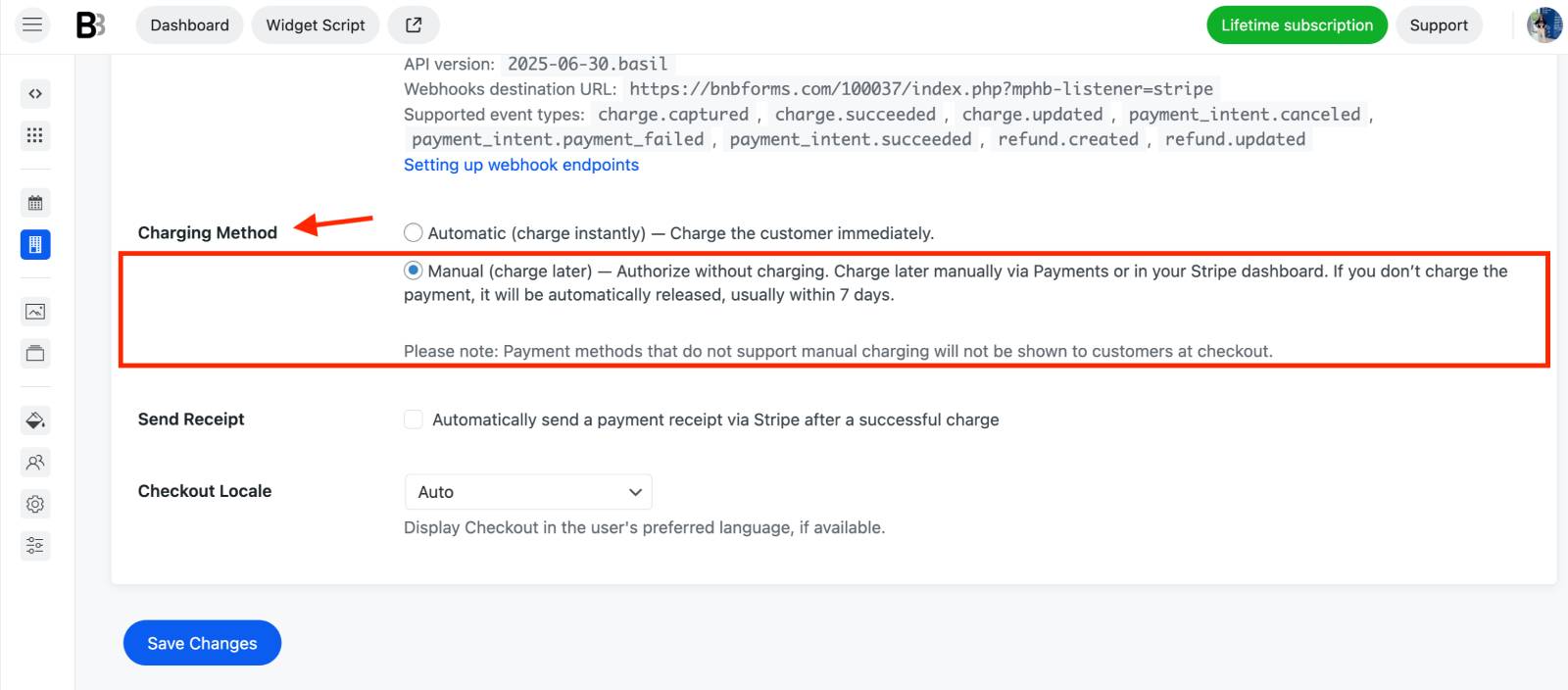
After you opt for this method, Stripe will authorize payments first instead of capturing them immediately. If you have not used online payments before, make sure that:
1) your booking confirmation mode is configured properly: Settings > General > Confirmation Mode > Confirmation upon payment.
2) you’ve added your Stripe configuration ID and credentials.
Guests get the respective ‘pending payment’ email and see that their payment is ‘on hold’ right on the booking confirmation page:
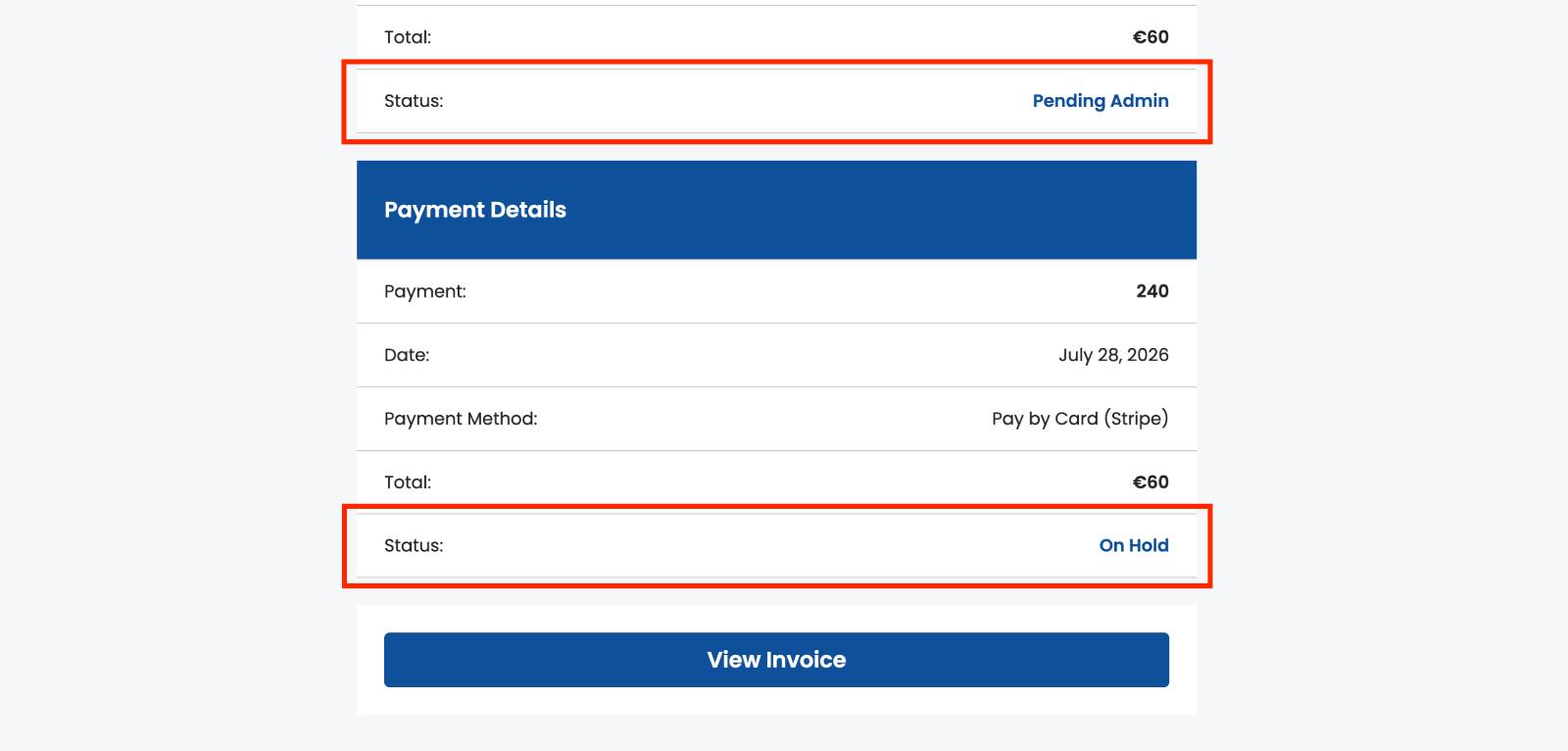
After a payment is authorized, it waits for your action.
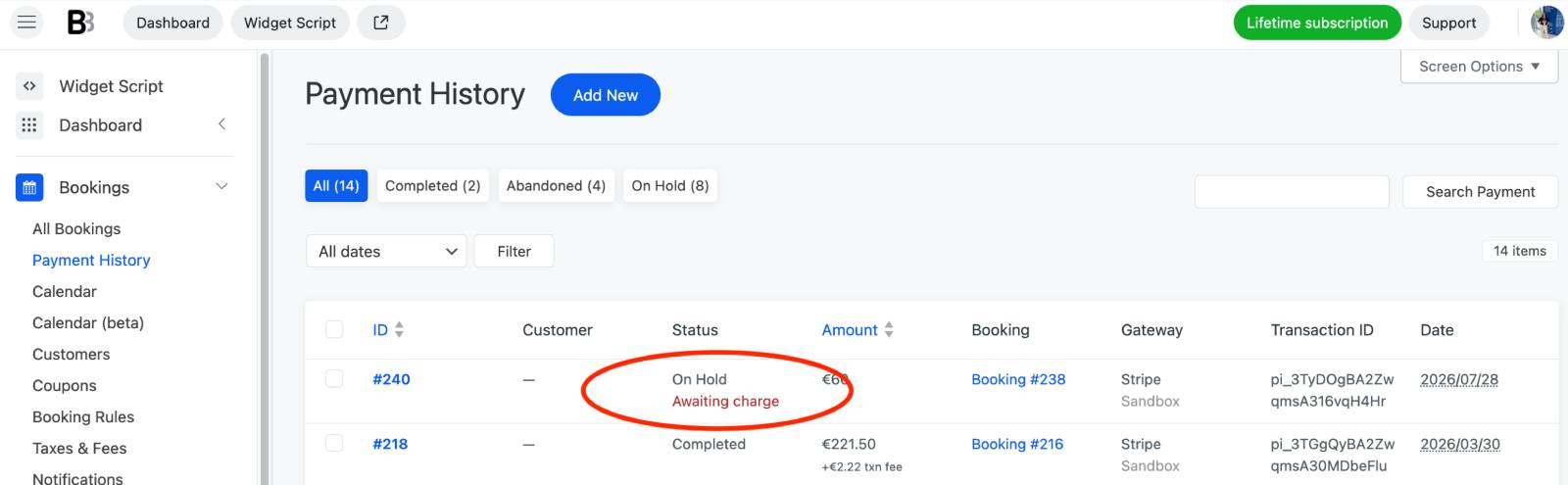
Open its details in your BNBForms dashboard to capture the funds or release them without completing the charge.
To do this, open the payment (via “Payment History”) or click on the payment ID inside the booking (via “Booking”) and find the Reserved Funds section. Here, you can choose what to do:
- Capture the payment (‘Charge now’).
- Cancel the authorization (‘Return funds’).
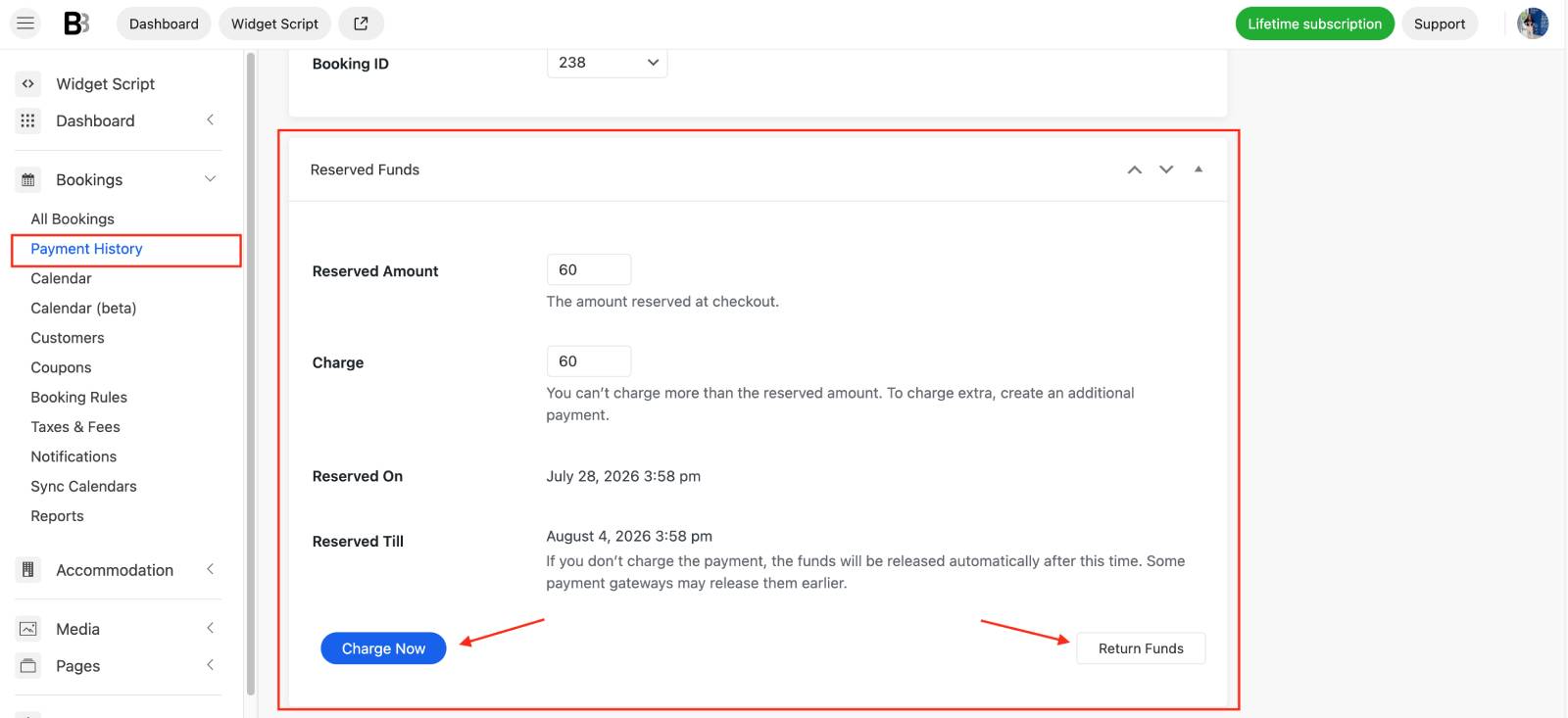
Keep in mind that Stripe only holds authorized funds for a limited time.
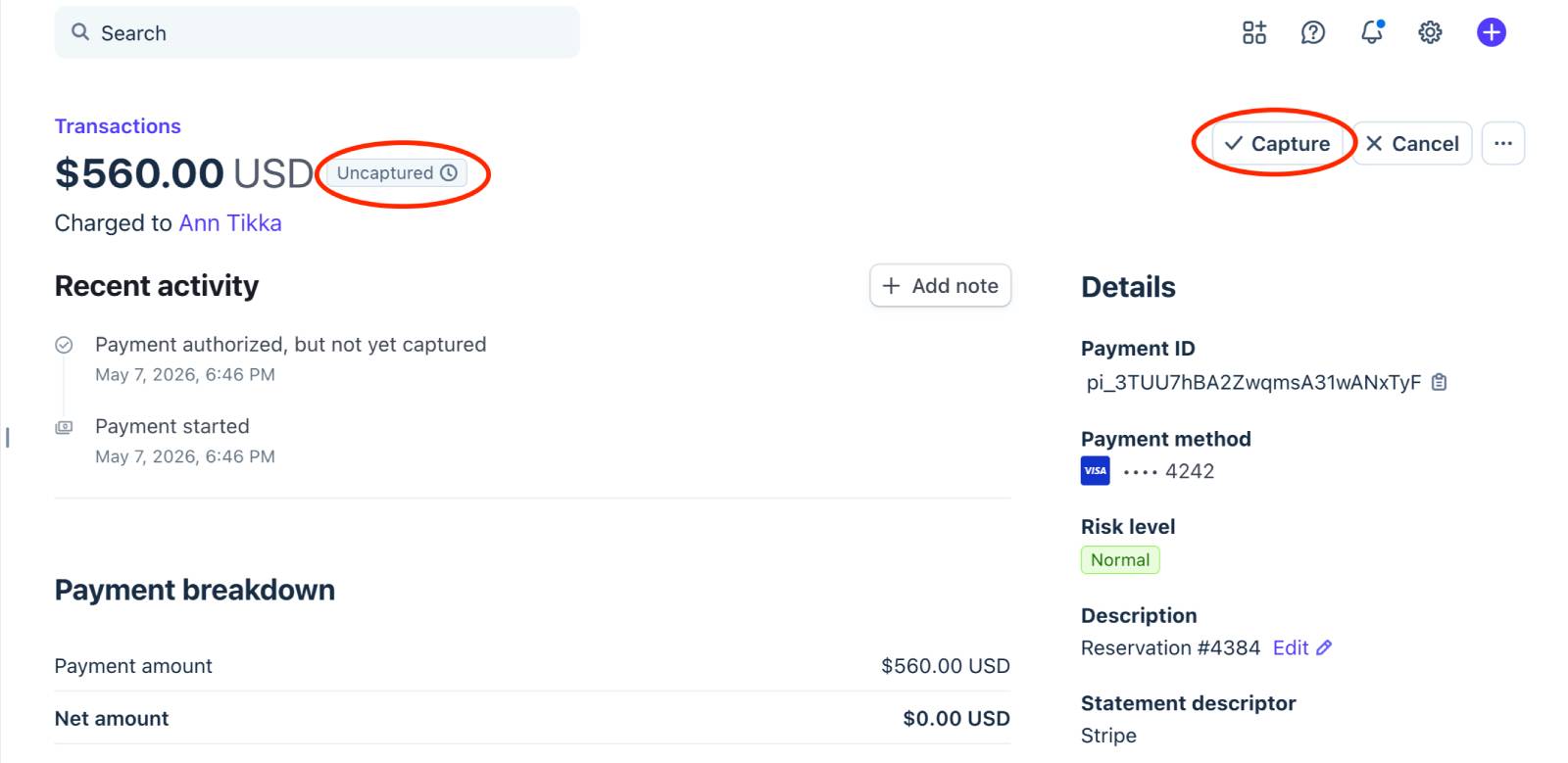
If it’s easier for you, you can do the same directly in your Stripe account. On the Stripe payments page, authorized payments appear as Uncaptured.
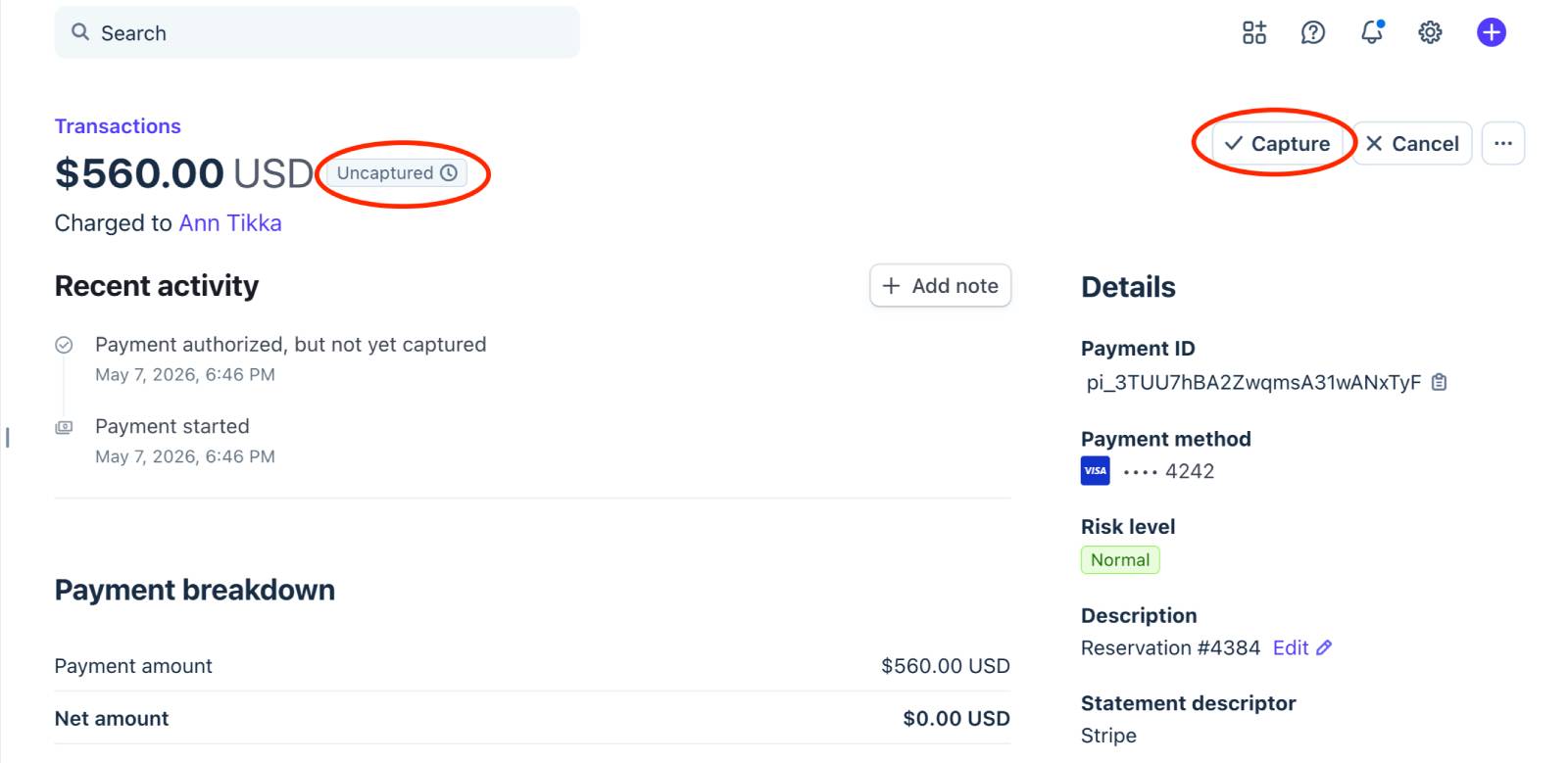
From the payment details page, you can capture or cancel a transaction.
You will see the status of each payment in the list of payments in Stripe:
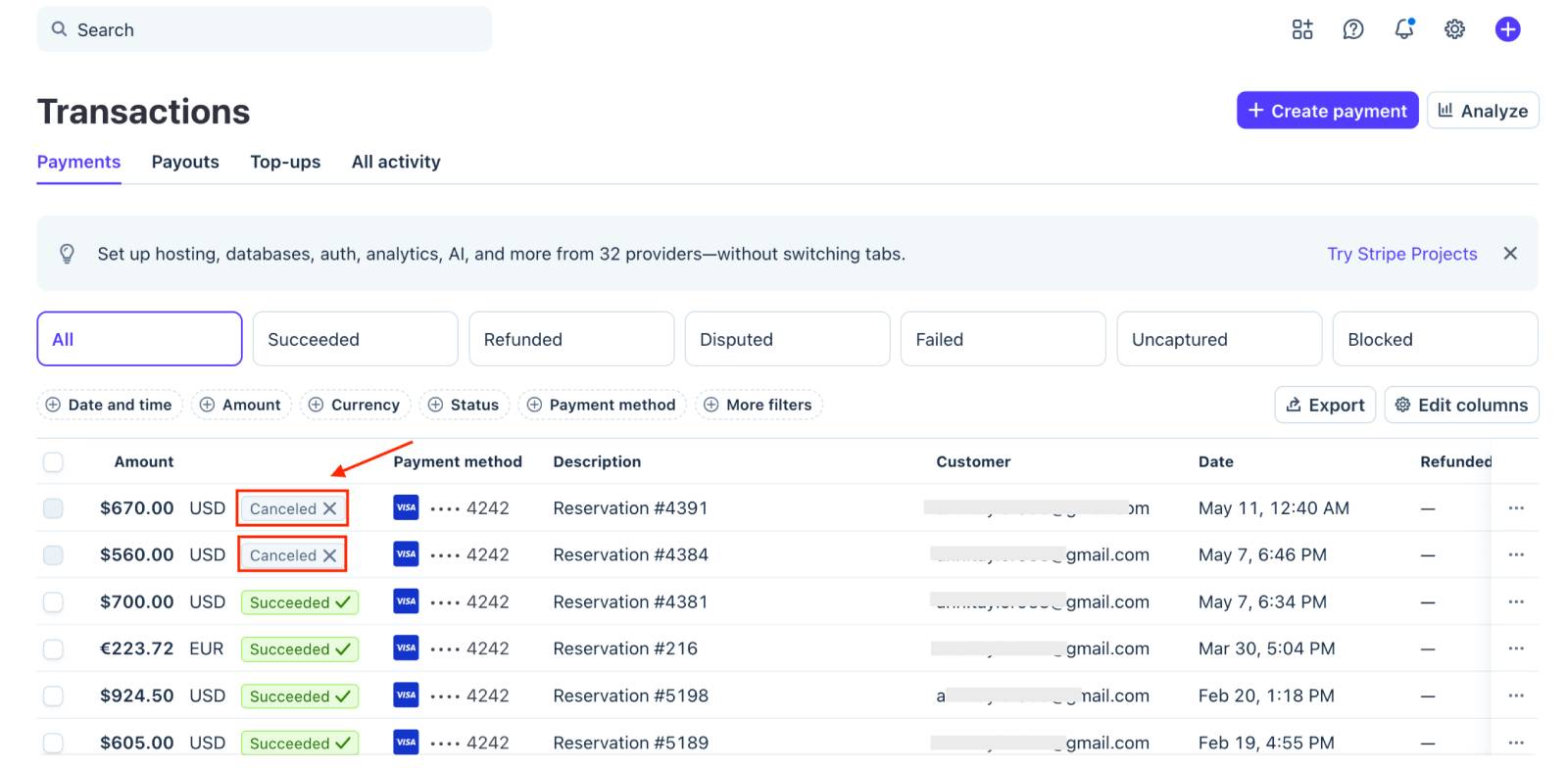
The exact period depends on the payment method, so if you opt for using this method, make sure to capture the payment before the authorization expires.
Once you capture the payment in either BNBForms or Stripe, the booking is confirmed automatically.
If you cancel the authorization, the funds are released, but the booking remains active until you change its status manually via the booking status settings:
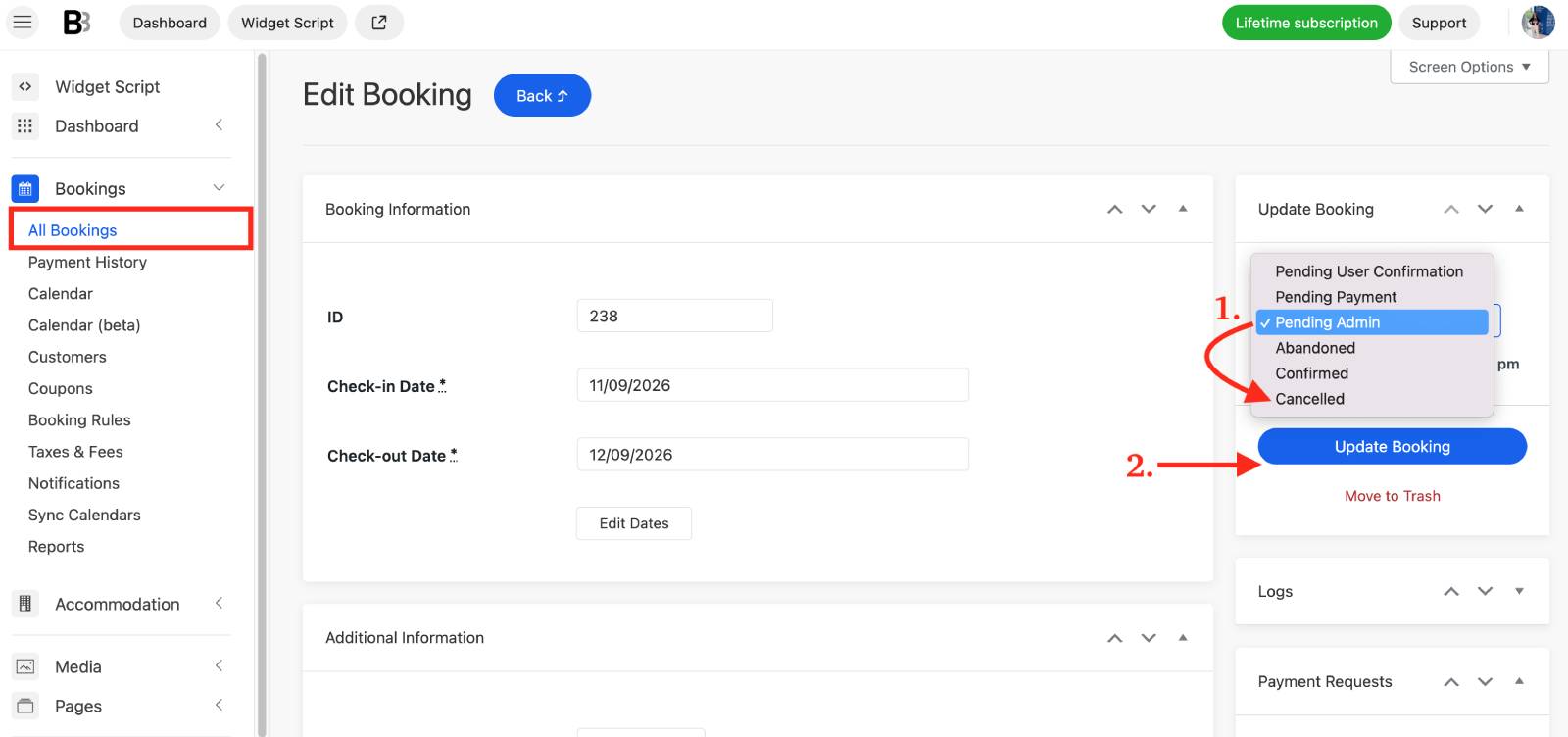
This gives you time to contact the guest, offer new dates or another room, or discuss other options first.
Here are important notes:
- Authorization holds expire. The exact period depends on the payment method, but it is typically around 7 days for cards, 10 days for PayPal, and up to 30 days for Affirm.
- Expired holds are released automatically. If you do not capture the payment in time, the funds return to the guest.
- Only supported methods work with manual capture. These may include cards, PayPal, Klarna, Afterpay, Cash App Pay, and Affirm.
- Some methods are not supported. ACH and iDEAL, for example, do not allow separate authorization and capture.
- Available options vary by guest. Stripe shows payment methods based on the customer’s country, browser, and device, so different guests may see different choices.
Summing up: Faster Way to Manage Direct Bookings
The latest BNBForms updates help you easier control pricing and payments:
- Do a lot of routine via the new property management calendar.
- You can make daily pricing adjustments much easier.
- Your rates and booking rules are also fully under your control in the new property management dashboard.
- Expanded Stripe support gives guests more ways to pay and allows you to review reservations before completing a charge.
Check out all these improvements directly in your BNBForms account today!